- Overview
- Monitoring Remote Synchronization
- Viewing Remote Sync Forecast
- Viewing an in-progress Remote Sync
Overview
'Remote Sync' enables an entire repository, including all the Macrium backups stored in that repository, to be synchronized to a secondary location. The SiteBackup server will delay new backups from starting, ensuring that the synchronization process has a consistent view of the repository. The synchronization process will also manage failed and partially uploaded files and ensure the remote copy of the repository is always in a consistent state.
To enable offsite replication of backups to cloud storage, Macrium SiteBackup supports remote synchronization using S3 to Wasabi Hot Cloud Storage.
Wasabi configuration
Log in to the Wasabi Management Console.
Create a Bucket
1. Navigate to the 'Buckets' menu.
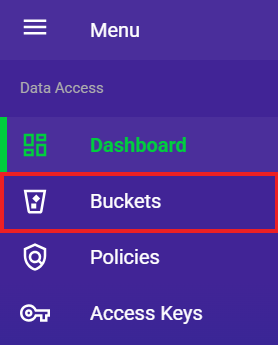
2. Select 'Create Bucket'.
2. Supply a bucket name and select the preferred region.
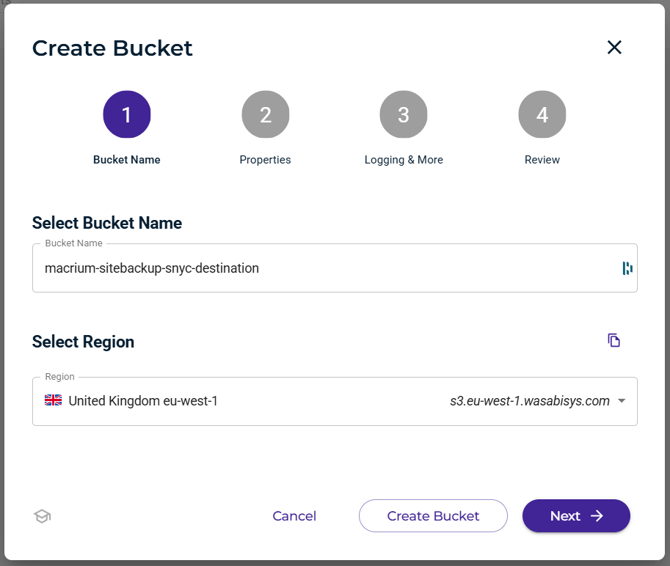
3. Click 'Next' and review the additional bucket options.
4. Click 'Next' and review the 'Bucket Logging' and 'Bucket Tagging' options.
5. Click 'Next' and review the bucket options that have been selected.
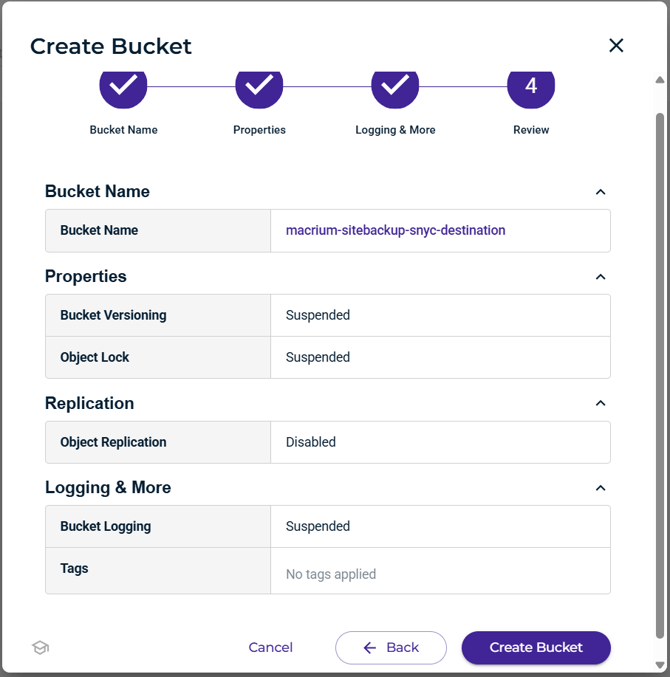
5. Click 'Create Bucket' to complete bucket creation.
Create a Policy
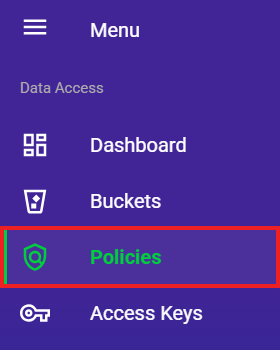
6. Navigate to the 'Policies' menu. Click the 'Create Policy' button
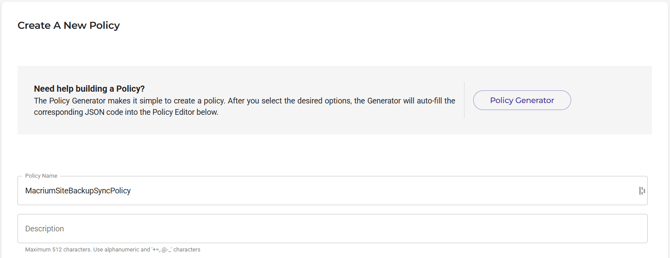
7. Policies are created through the 'Policy Generator' or by manually producing the policy document.
8. Next, supply a policy name.
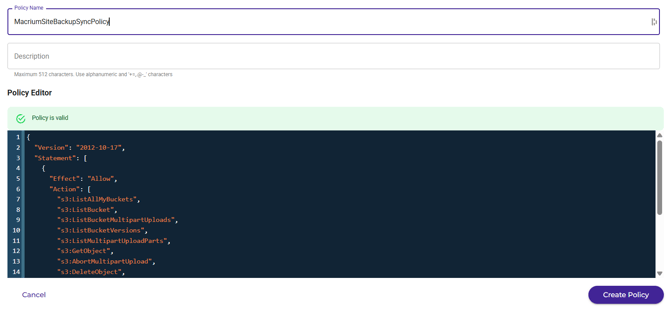
9. Create the policy. Remote Sync requires the policy to allow the following actions:
- s3:ListAllMyBuckets
- s3:ListBucket
- s3:ListBucketMultipartUploads
- s3:ListBucketVersions
- s3:ListMultipartUploadParts
- s3:GetObject
- s3:AbortMultipartUpload
- s3:DeleteObject
- s3:DeleteObjectVersion (optional if bucket versioning is not used)
- s3:PutObject
The following policy document example covers the expected actions and restricts its use to the ‘macrium-site-manager’ bucket created earlier:
{
  "Version": "2012-10-17",
  "Statement": [
    {
      "Effect": "Allow",
      "Action": [
        "s3:ListAllMyBuckets",
        "s3:ListBucket",
        "s3:ListBucketMultipartUploads",
        "s3:ListBucketVersions",
        "s3:ListMultipartUploadParts",
        "s3:GetObject",
        "s3:AbortMultipartUpload",
        "s3:DeleteObject",
        "s3:DeleteObjectVersion",
        "s3:PutObject"
      ],
      "Resource": [
        "arn:aws:s3:::nameofbucket",
        "arn:aws:s3:::nameofbucket/*"
      ]
    }
  ]
}
Note: This example policy document provides the minimum set of permissions required for Macrium SiteBackup to synchronize a repository to a Wasabi S3 bucket. Replace nameofbucket with the name of the bucket being used as the remote synchronization destination.
The wildcard (*) in arn:aws:s3:::nameofbucket/* grants the specified object-level permissions across all objects within the bucket. This can be further restricted to a specific object within the bucket, for example arn:aws:s3:::nameofbucket/sync/*.
10. Select the 'Create Policy' button to complete policy creation.
Create a User
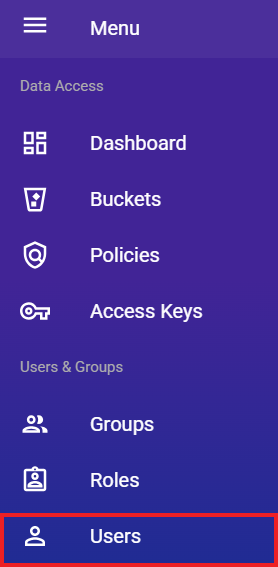
11. Navigate to the 'Users' menu. Click the 'Create User' button.
12. Provide a username. Select 'Programmatic (create API key)'. 'Console' access is optional. Select 'Next'.
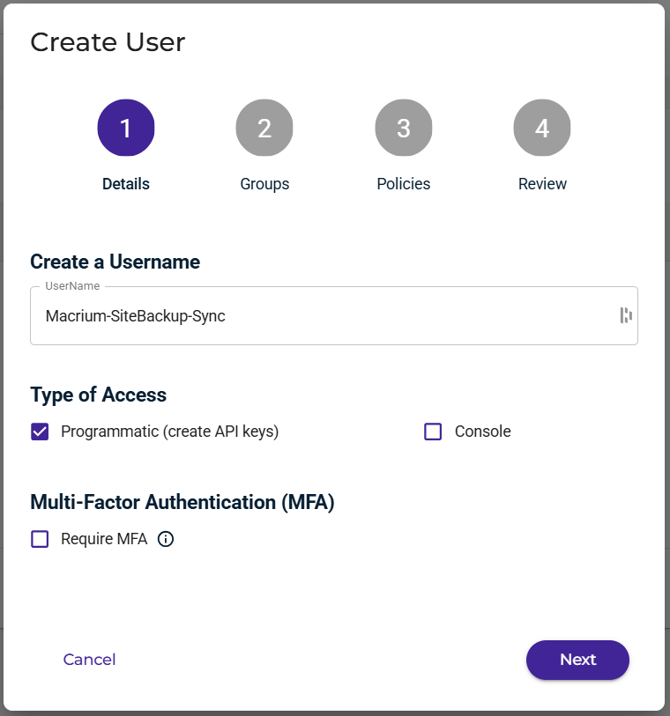
13. Optionally, add to an existing or create a new group for the user to be associated with.
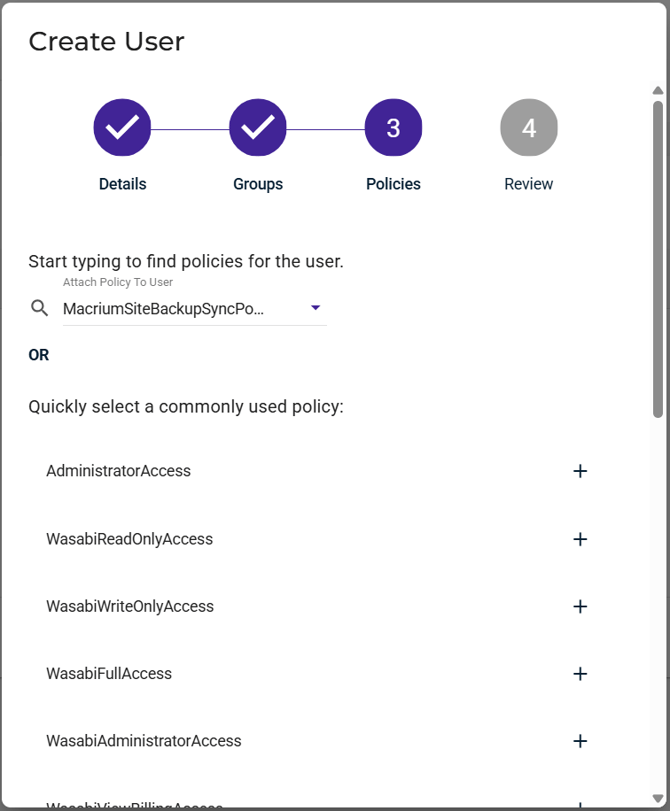
14. Select 'Next' on group setup completion. Search for the policy created earlier and attach it to the user (or attach the policy to a group associated with this user after the user is created).
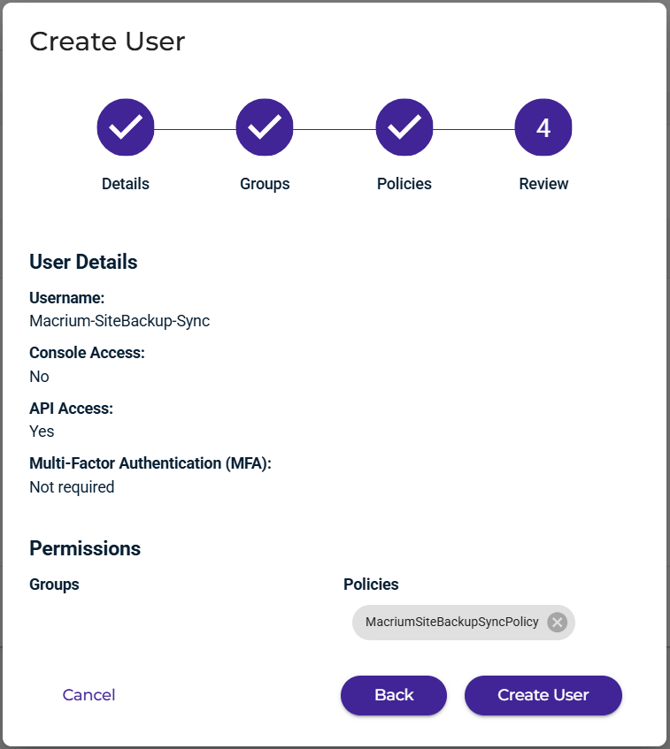
15. Select 'Next' to review the created user configuration. Select 'Create User' to complete the user creation process.
16. The 'Create New Access Key' dialog will appear, containing the user’s 'Access Key' and 'Secret Key'. This information should be stored securely; the secret key can’t be recovered after this point, but replacement keys can be generated and must be created before configuring.
SiteBackup Configuration
Note: The repositories need to be created before configuring a synchronization. For instructions on creating a repository, please click here.
Remote sync is configured on a per-repository basis. Remote sync configurations that share a single bucket must use unique pathing to prevent conflicts.
Using the left menu panel, navigate to the 'Scheduled Activity' page.
1. Using the left hand menu, select 'Active Backups' under the 'Backups' dropdown heading:
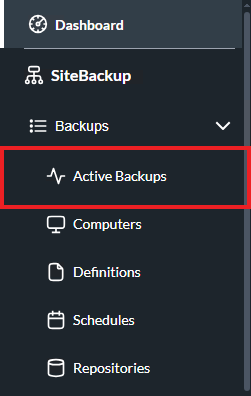
2. At the top of the 'Active Backups' page, select 'Remote Sync':

3. In the window that opens, select the repository that will be synchronized to Wasabi, then select 'Next'.
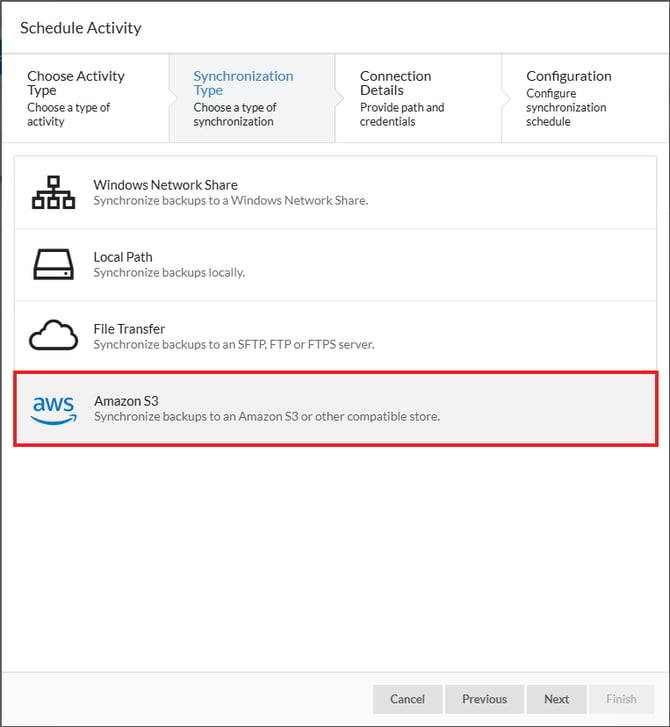
4. Select 'Amazon S3' for the synchronization type:
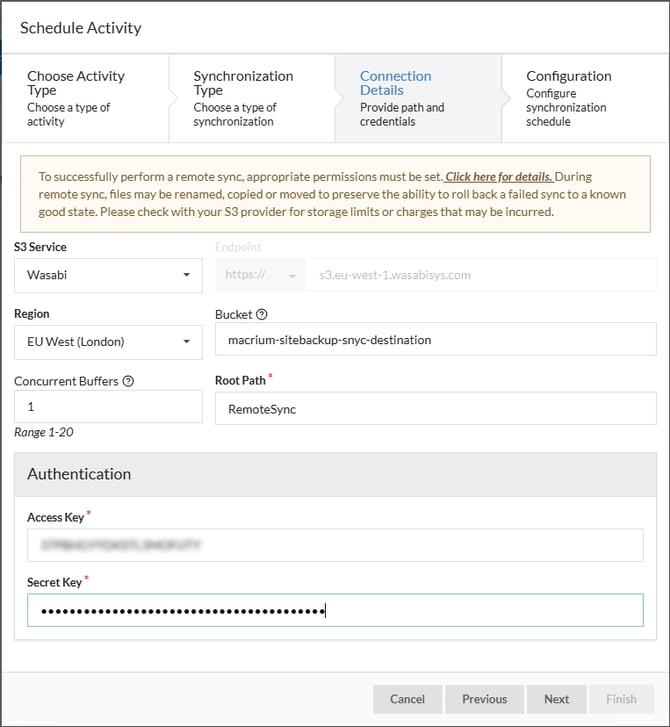
4. Set the 'S3 Service' dropdown menu to 'Wasabi'.
.png)
5. Set the 'Region' dropdown menu to match your bucket’s region.
.png)
6. Set the 'Bucket' field to match your bucket’s name.
7. Set the 'Root Path' field with the path to place repository data within the bucket. This field isn’t required.
.png)
8. Set the 'Access Key' and 'Secret Key' with the credentials previously provided by Wasabi and select 'Next'.
.png)
Once the information has been entered, this will look similar to the example below:
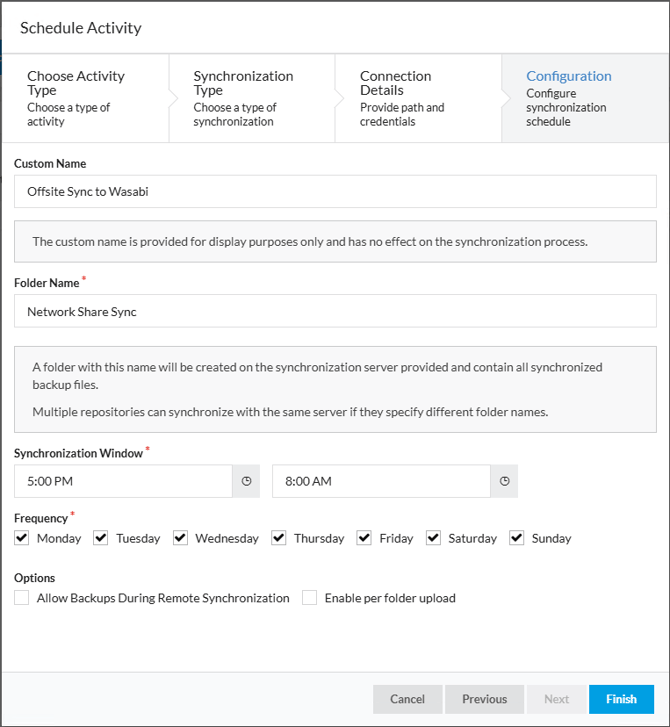
9. In the Configuration tab, set the required details to configure the synchronization schedule.
- Optional, set the 'Custom Name' field (used for display purposes within Site Manager).
- Set the 'Folder Name' that will contain the backup data, the folder will be added after the Root Path.
- Set the 'Synchronization Window' times, Remote Sync will run between this time block, syncs still running by the end time will be abandoned until the following day. This feature can prevent high internet bandwidth usage during known peak times.
- Set the (Synchronization Window) Frequency, Remote Sync will only run on the days selected.
- Set the 'Allow Backups During Remote Synchronization' under 'Options' as preferred, if active Site Manager will attempt to run backups and remote syncs simultaneously when possible
10. On selecting 'Finish', the wizard will perform a connection test to Wasabi.
Monitoring Remote Synchronization
Viewing Remote Sync Status
The Wasabi Remote Sync details are accessible through the 'Active Backups' page. The page displays a general status, configuration information, and a breakdown of the last run Remote Sync result, including whether it succeeded, any error messages, the amount of data uploaded, and which files were affected
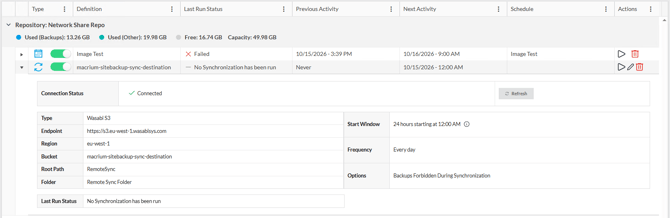
The 'Run Now' option allows a sync to be started manually. This manually started sync will wait for any active backups in the Repository to finish before starting and will prevent any backups from starting until the sync is completed.
Viewing Remote Sync Forecast
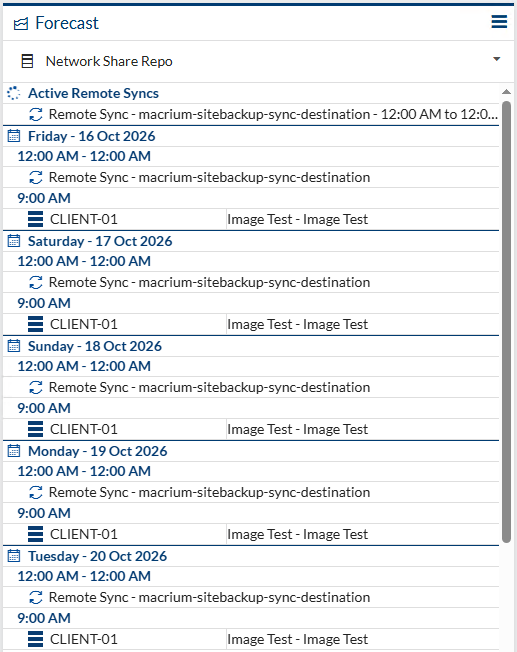
The upcoming forecast for a remote sync can be found on the 'Dashboard' page under the 'Forecast' widget or within the 'Repositories' page.
Viewing an in-progress Remote Sync
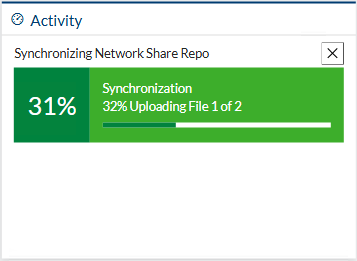
The in-progress details for a remote sync are available on the 'Dashboard' page under the 'Activity' widget.