
- Overview
- Restoring Microsoft Exchange Databases to the Time of a Backup
- Restoring Microsoft Exchange Databases to Another Point in Time
- Restoring Microsoft Exchange Databases to a Different Name or Location
Overview
Macrium Reflect LTSC Server Plus can perform granular backup and recovery of a local Microsoft Exchange Server. Macrium Reflect Server Plus has several different ways of restoring Microsoft Exchange data. This article details the steps to recover a whole Microsoft Exchange database to the time of a backup, another point in time, and different names and locations. For more information about restoring granular mailbox data, see this article.
Restoring Microsoft Exchange Databases to the Time of Last Backup
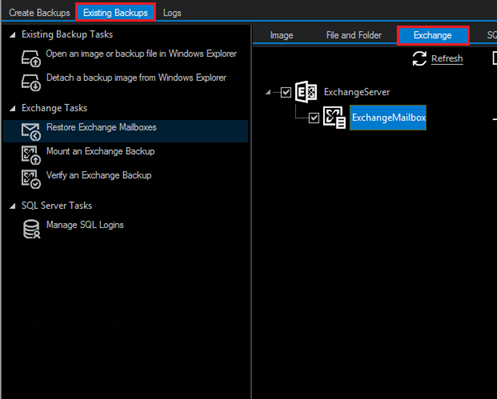
To restore a Microsoft Exchange database to the time of the last bcakup, select the 'Existing Backups' tab and then select 'Exchange'. The databases that are available to be restored, have a backup, are displayed on this tab. If not databases are shown on this tab, use the 'Folders to search' option and enter the path to where the Exchange backup is located.
Use the checkbox next to each database to include it in the restore:
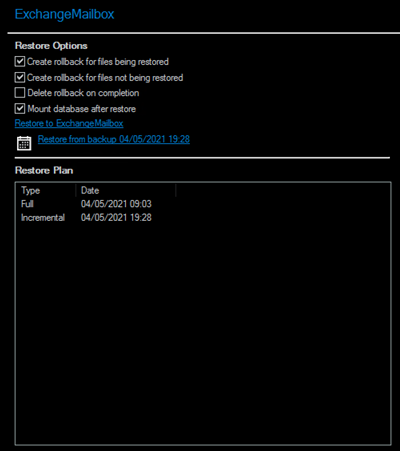
The 'Restore Plan' section of this tab shows the backup files that are selected:
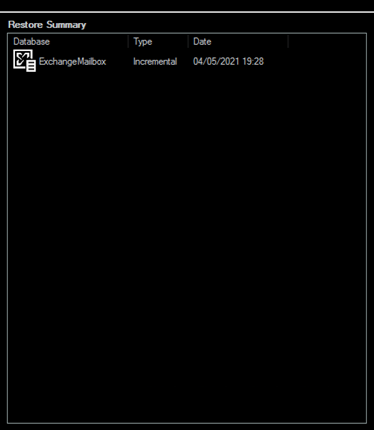
The 'Restore' summary section of the tab shows each database that will be restored and the date and time that it will be restored to:
Select 'Restore' to start the database restore back to their original locations and database names.
Restoring Microsoft Exchange Databases to Another Point in Time
When restoring to a different point in time, only the log files up to that point in time are restored which are then replayed into the restored database.
To restore a Microsoft Exchange database to a specific point in time, select the 'Existing Backups' tab and then select 'Exchange'. The databases that are available to be restored, have a backup, are displayed on this tab. If not databases are shown on this tab, use the 'Folders to search' option and enter the path to where the Exchange backup is located.
Use the checkbox next to each database to include it in the restore:
The 'Restore Plan' section of this tab shows the backup files that are selected. Select the 'Restore from backup' button to change the point in time the selected databases will be restored to:
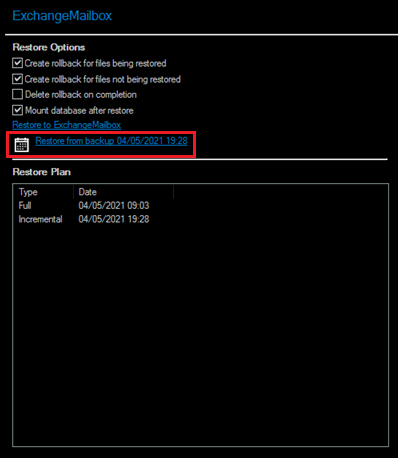
In the window that opens, select a file that will be restored:
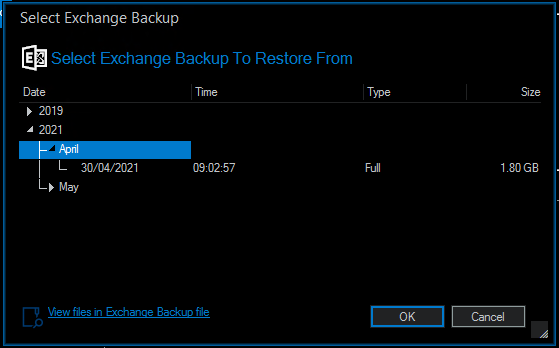
Selecting 'View files in Exchange Backup file' will display the files that are contained in the backup.
Select 'OK' to confirm the selected backup.
The 'Restore' summary section of the tab shows each database that will be restored and the date and time that it will be restored to:
Select 'Restore' to restore the selected database(s) to the selected point(s) in time.
Note: When restoring databases to point in time for the same storage group (under Microsoft Exchange 2003/2007) Macrium Reflect forces you to use the same backup file in a single restore operation to maintain log file consistency during the mount process.If multiple databases in the same storage group need to be restored to different points in time, do so in separate restore operations.
Restoring Microsoft Exchange Databases to a Different Name or Location
Using Macrium Reflect Server Plus, databases can also be restored to different names and locations with support for storage group and database creation.
To restore a Microsoft Exchange database to a different name or location, select the 'Existing Backups' tab and then select 'Exchange'. The databases that are available to be restored, have a backup, are displayed on this tab. If not databases are shown on this tab, use the 'Folders to search' option and enter the path to where the Exchange backup is located.
Use the checkbox next to each database to include it in the restore:
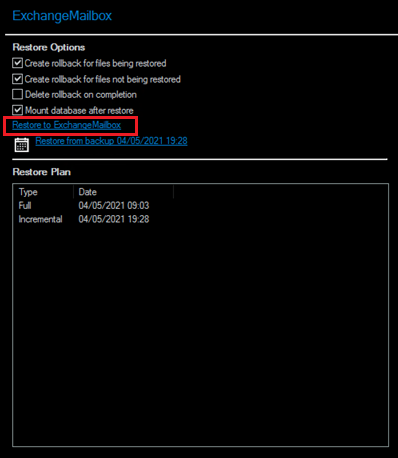
Under the 'Restore Options' heading, select 'Restore to ExchangeMailbox':
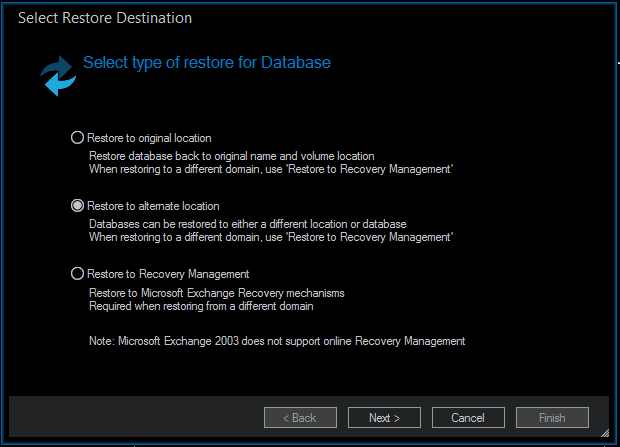
In the window that opens, several destinations for the database restore will be displayed. To restore the Exchange database to a different name or location, select 'Restore to alternate location', then select 'Next >':
On the next page of the wizard, specify the options for where the database will be restored to:
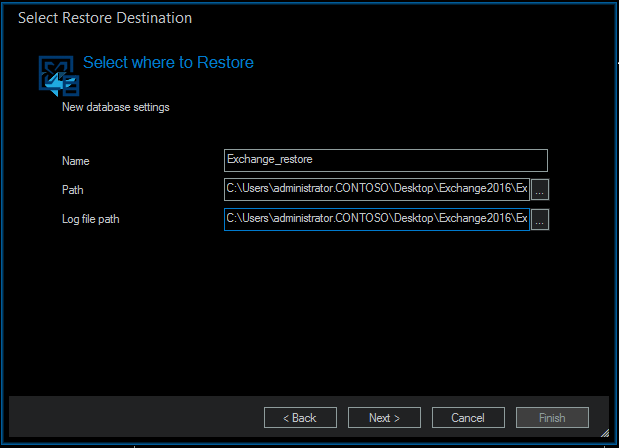
The options on this page are:
| Name: | The name of the restored database. |
| Path: | The folder where the database will be stored. |
| Log file path: | The folder where the transaction logs for the database will be stored. |
Once the settings have been specified, select 'Next >' and then 'Finish'.