![Macrium Software Logos-1.svg]](https://kbx.macrium.com/hubfs/Macrium%20Software%20Logos-1.svg)
- Overview
- Backing up Microsoft Exchange Databases
- Edit the Plan for this Backup
- Summary
Overview
Macrium Reflect LTSC Server Plus can perform granular backup and recovery of a local Microsoft Exchange Server. This enables point-in-time restores of whole Microsoft Exchange databases or even granular recovery of individual emails.
Macrium Reflect requires the Microsoft Exchange Information Store service to be installed and running in order for database backup to function.
Backing up Microsoft Exchange Databases
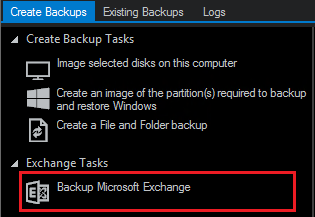
To create a backup of Microsoft Exchange databases, select the 'Backup Microsoft Exchange' option under the 'Exchange Tasks' menu on the 'Create Backups' tab.
On the first page of the Microsoft Exchange Backup wizard, in the window that opens, the Microsoft Exchange instance will be shown with its databases:
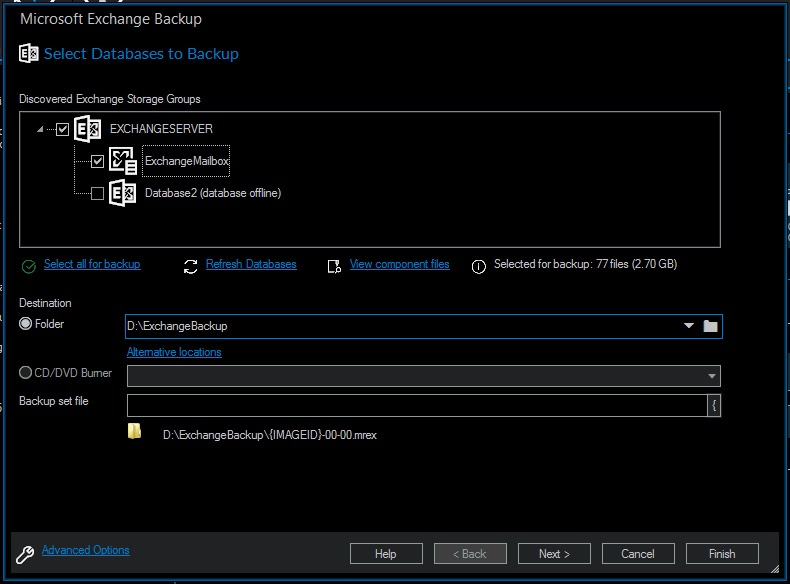
Select the items that will be backed up. For Microsoft Exchange 2010 and later, select the individual databases that will be backed up. For Microsoft Exchange 2007 and earlier, select the storage groups that will be included in the backup, this includes all the databases that are contained in the selected group.
Unmounted Exchange databases are shown in the Microsoft Exchange Backup Wizard and can be selected for backup. However, VSS will not include unmounted databases in the snapshot and the Exchange backup will fail. To include these databases in the backup, either ensure the databases are mounted at point of backup or use established recovery mechanisms to bring the affected databases into a clean, shutdown state.
View Component Files
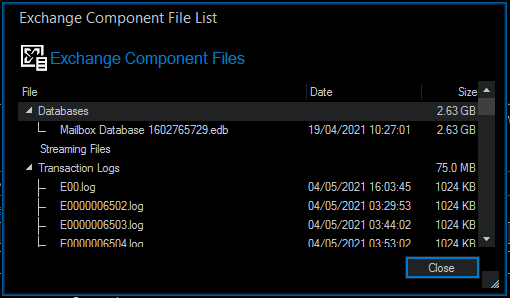
Selecting the 'View component files' will display the list of files that make up the currently selected item(s). Files are grouped according to type and show last date modified along with file size. Each category of file shows the total size. Groups of files can be expanded/collapsed by clicking the plus/minus button to the left of the file type name.
Destination
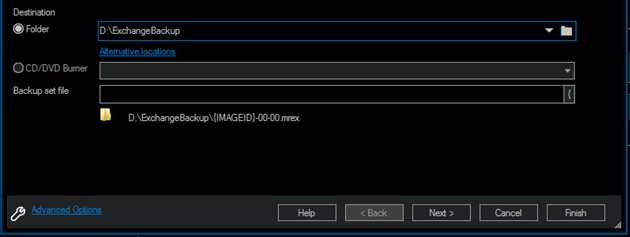
The destination for the Microsoft Exchange backup is specified at the bottom of this page. The destination can be a local drive or network share specified in UNC format (\\Server\Share).
Alternative Locations
The 'Alternative Locations' option can be used to specify alternative locations for the image destination. If the primary backup location is not available when the image starts, each location specified will be tried in sequence until an available destination is found. This can be used to easily configure drive rotation, enabling images to be taken offsite for redundancy and provide extra resiliency if the primary destination is not available.
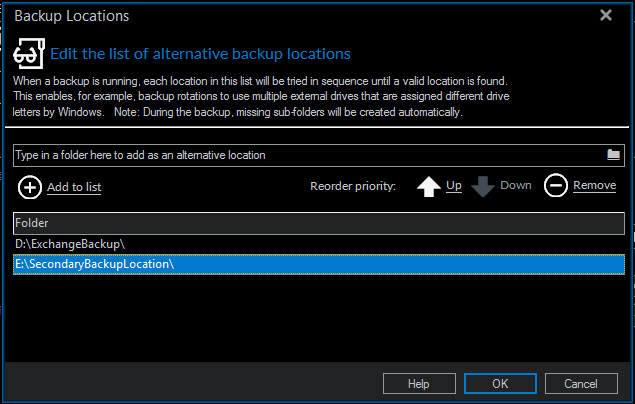
Alternative locations can be specified and added to the list of locations using the 'Add to list' button. The destinations will be attempted in the order they appear in this list. The order the destinations are attempted can be changed using the 'Up' and 'Down' buttons or removed from the list with the 'Remove' button.
Once all the alternative destinations have been specified, select 'OK' to complete the window.
Edit the Plan for this Backup
On the next page of the 'Microsoft Exchange Backup' wizard, a schedule can be created to ensure that changes to the Microsoft Exchange databases are regularly backed up.
To assist in creating a schedule, there is a set of "industry standard" schedules included with Reflect. These schedules can be selected and then edited to make them a better fit for the system that is being backed up using the 'Add Schedule', 'Edit Schedule', and 'Delete Schedule' options:
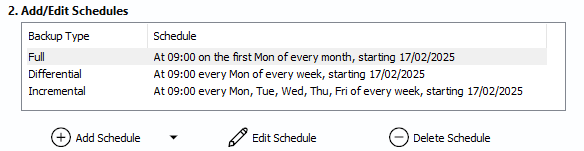
Alternatively, a schedule can be created from scratch, without a template being selected. Click the 'Add Schedule' button, then select the type of image that will be scheduled:
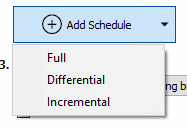
Three types of backup can be specified when creating a schedule. The different type of backup defines what is backed up from the Exchange database. More information about the backup types can be found here.
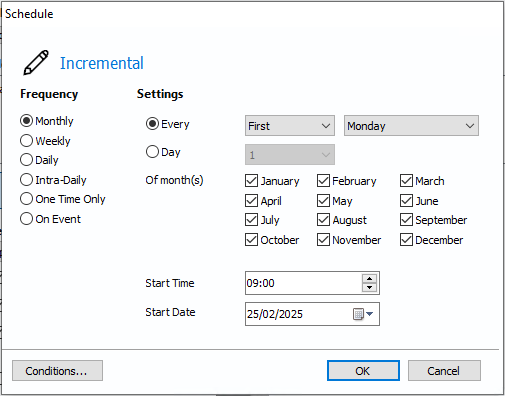
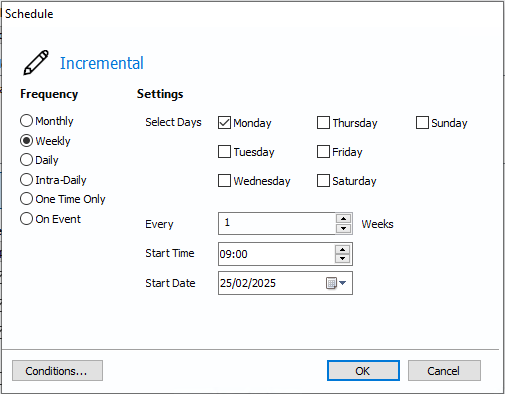
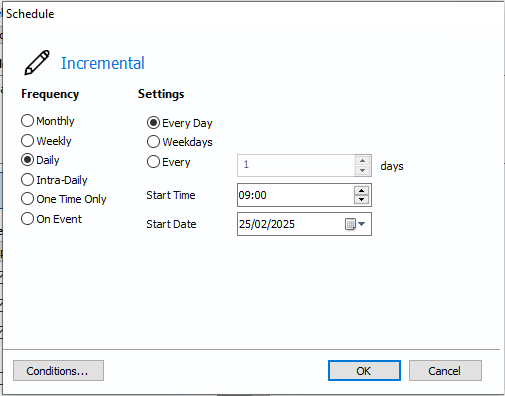
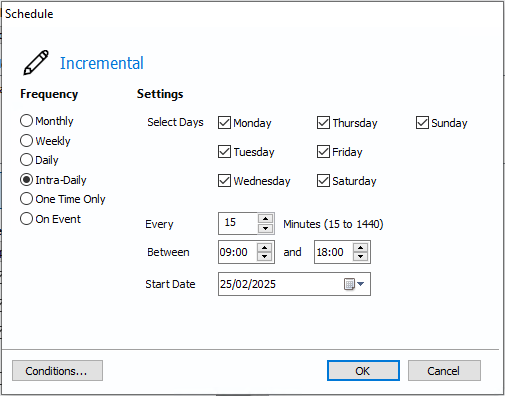
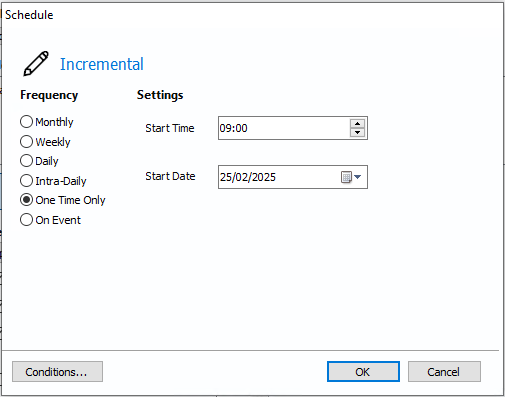
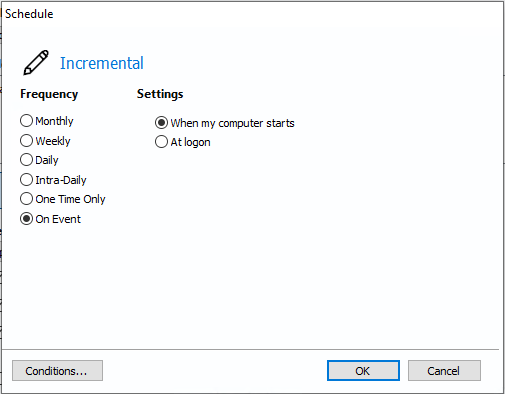
In the window that opens, the 'Frequency' and 'Options' for the schedule can be changed. The list of options on this page will change depending on the 'Frequency' that has been selected:
 |
 |
 |
 |
 |
 |
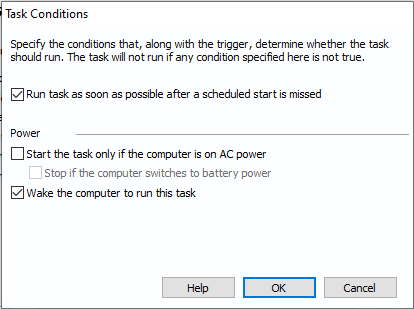
Selecting 'Conditions' will display additional options that can be used to determine whether the task should run:
| Option | Description |
| Run task as soon as possible after a scheduled start is missed | If a scheduled start is missed, e.g. due to the system being powered off, the scheduled task will start when it's next possible. |
| Start the task only if the computer is on AC power | The task will not start if the computer is on battery power. |
| Stop if the computer switches to battery power | If the computer switches to battery power during the clone, the clone will stop. This option is only available if Windows Task Scheduler is selected in the 'Schedule Settings'. |
| Wake the computer to run this task | When selected, the system will attempt to wake from sleep to run the scheduled backup. |
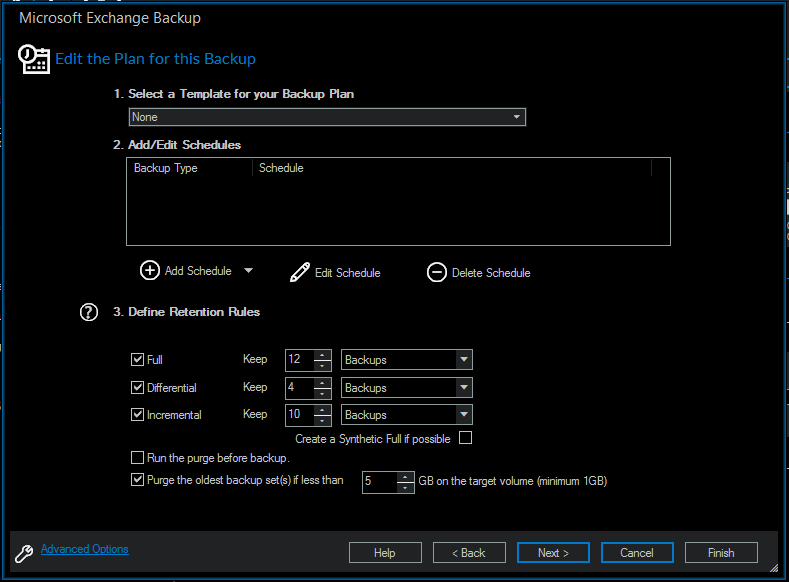
Any triggers that have been created are displayed on the 'Edit the Plan for this Backup' page. Triggers can be edited and deleted by selecting a trigger and then selecting one of the options below the triggers table:
Define Retention Rules
Macrium Reflect retention rules provide a powerful and flexible way to manage the lifetime and storage space used by your backups. Choose how backups are matched and how retention rules are applied to the target folder:

Retention rules are applied to the target folder of the backup by selecting one of two options:
| Matching backup sets in the target folder. |
Disk images are purged if they contain exactly the same partitions as the current image. Partitions are identified using the unique disk ID stored in sector 0 of the disk and the partition sector offset. Note: For GPT disks the unique GPT disk GUID is used instead of the Disk ID |
| All backup sets in the target folder. | All backup sets in the target folder of the same type (disk image or file and folder) are purged according to the retention rules. |
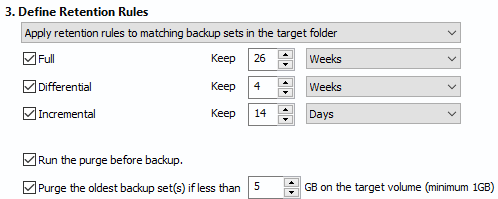
Next, select the age or number of backup types that will be kept:
| Option | Description |
| Full | When deleting full backups, all linked incremental and differential images in the same backup set are also deleted. |
| Differential | When deleting differential backups all linked incremental images in the same backup set are also deleted. |
| Incremental | When deleting incremental backups the integrity of the backup set is maintained by ensuring that the set is never broken. This is achieved by merging older incremental backups when required. |
| Create a Synthetic Full if possible | When purging incremental backups, if the image set only contains a full image followed by incremental images, then this option causes the full image to be 'rolled forward' to create a synthetic full backup. This is also known as incremental forever. |
| Run the purge before the backup | Select this option to run the retention rules before the current backup starts. |
| Delete the older backup set(s) if less than X GB on the target volume |
Automatically remove the oldest backup set(s) in the target folder if the free space on the drive drops below the GB threshold. Note: The free space threshold is actioned dynamically. If the free space available drops below the threshold then the running backup is temporarily paused while older backup sets are purged. |
Summary
The final page of the wizard displays a summary of the backup of settings and options that were specified. While reviewing this page, previous pages of the wizard can be navigated to while changes are made to the options and settings. Once the settings have been reviewed, select 'Finish'.
Backup Save Options
After selecting 'Finish', the 'Backup Save Options' window will be displayed with options to 'Run this backup now' and 'Save as a Backup Definition File'.
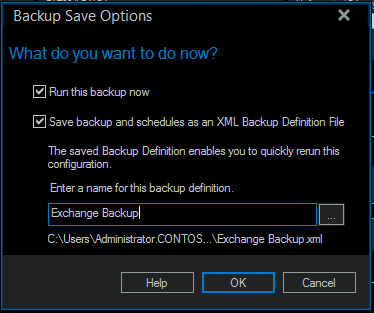
If 'Run this backup now' is left unchecked, the backup will run at the next scheduled start time, if a schedule was specified, or can be launched manually on the 'Definition Files' tab.
'Save as a Backup Definition File' must be left checked if a schedule has been specified. This option can still be left checked if a schedule has not been specified to make manually running the same backup again in the future easier, as shown in the screenshot above.