
- Overview
Overview
Backup images allow systems and data to be recovered quickly, but successful recovery depends on the integrity of those images. Regular validation helps test that backup images are intact, usable, and restorable over time. This article outlines practical ways to validate backup images after they have been created.
Each test can be applied depending on available resources and operational constraints. Whether this involves regular hash verification, regular restore testing, or full disaster recovery exercises, the goal is to validate backups in a way that is achievable and sustainable.
This article assumes that an image of the operating system (and any additional disks) has been created. If you have not yet created an image, follow the steps in this article.
Hash Verification
When backups are created, an MD5 hash is created for each block of data after it is read from the source disk, and before it is written to the destination disk, and then stored in the index of the backup file. When a backup is verified, each block has the MD5 hash recalculated and compared to the hash that is stored in the index. If any of the recalculated hashes are different from the hash that is stored in the index of the backup, it indicates that the data in the backup has changed since it was read from the source disk during backup creation; this is also known as backup corruption.
To verify a backup in Macrium Reflect X, select the backup that will be verified in the 'Existing Backups' tab, then select 'Verify':

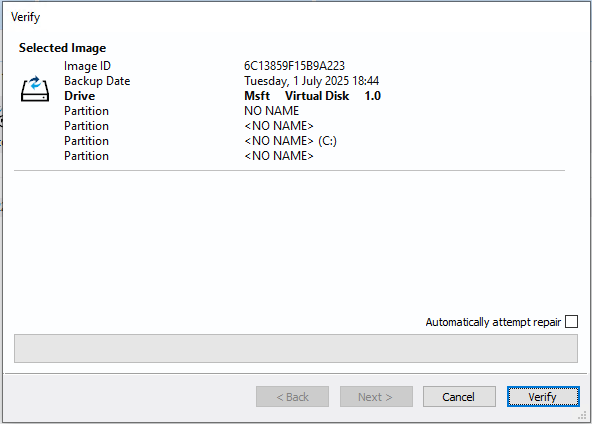
In the window that opens, additional options for the verification can be specified:
| Option | Description |
|
Automatically attempt repair |
If this option is selected and corruption is detected in a data block included in the backup, the current live file system is checked to see if it contains the original data. If the original data block is found then the image file is repaired by replacing the corrupt data.
|
|
Verify just this Incremental/Differential |
Since incremental and differential backups are appended to previous backups in the backup set, data may need to be restored from multiple backups when restoring the selected backup file in the future. By default, all the relevant data from previous backups in the backup set will also be verified to ensure that the selected incremental/differential backup can be restored. If this option is selected, only the selected incremental/differential backup will be verified. |
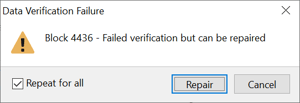
If the verification is performed successfully, the following success message will be displayed:
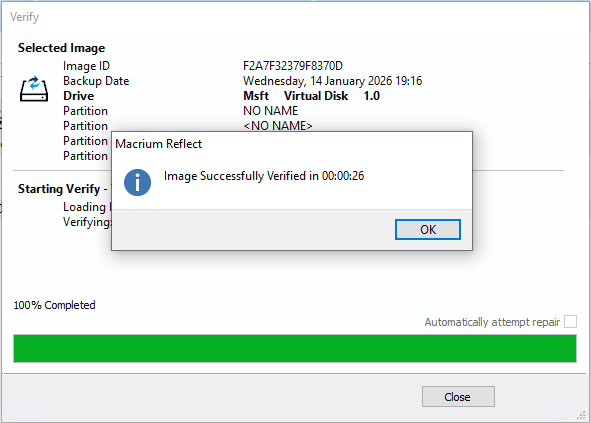
This ensures that the data contained in the image is exactly the same as the data that was backed up from the source system.
Boot as a Virtual Machine
Whilst hash verification is a useful tool to ensure that the data contained in the image is exactly the same as the data that was read from the source disk, it does not provide any evidence that the image is bootable.
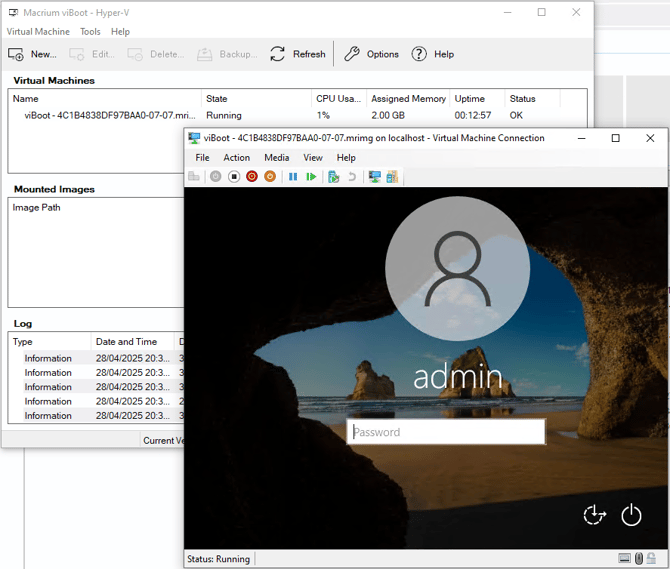
Macrium viBoot enables you to instantly boot a Microsoft Hyper-V or Oracle VirtualBox virtual machine using a Macrium Reflect image file. This helps ensure that the image is bootable, meaning that the operating system will boot correctly after a restore. This virtual machine will also provide a desktop experience, enabling applications to be checked.
Macrium viBoot can also be launched on the 'Existing Backups' tab of Macrium Reflect. To do this, select a bootable image file on the 'Existing Backups' tab of Macrium Reflect, then select the 'viBoot' icon on the action bar:
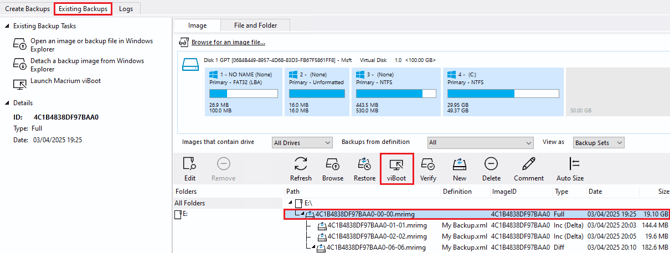
If the image does not contain the necessary partitions to boot an operating system, the 'viBoot' icon will be disabled:
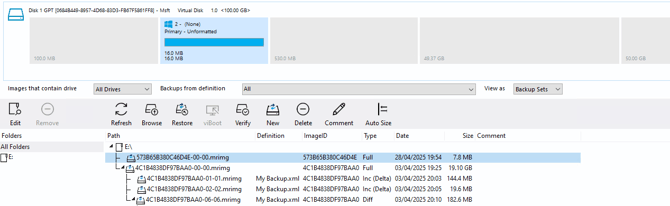
This will launch Macrium viBoot partway through the 'New Virtual Machine' wizard, with the selected image already added to viBoot:
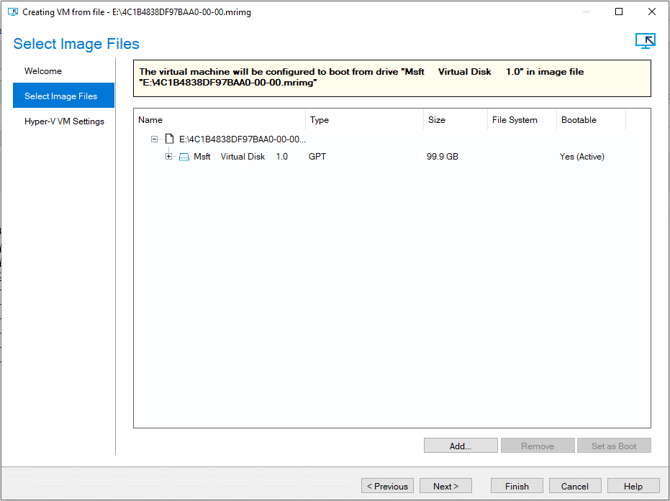
The disks contained within the image can be expanded to view the partitions located on the disk:
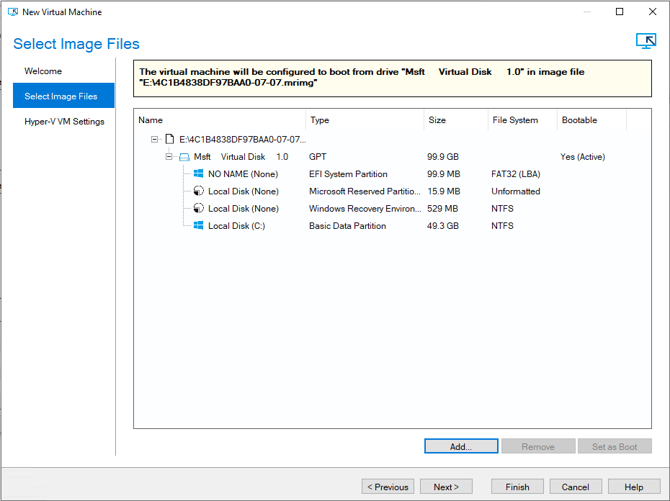
The first bootable disk contained in the image will be marked as the boot disk. If the image contains multiple bootable disks (e.g., an image of a dual-boot system), the boot disk can be changed by selecting a disk, then selecting the 'Set as Boot' button.
Once the relevant image has been selected, select 'Next' to proceed with the wizard.
The final page of the 'New Virtual Machine' wizard is used to specify the settings and virtual hardware specifications for the new virtual machine.
The 'Processors' and 'Startup RAM' options are limited to match the host computer. If the number of processors is set to 'Automatic', viBoot will interrogate the Windows settings from the image files to set the correct number of processors.
Setting the 'Virtual Switch' to '<None>' will ensure that the virtual machine is not able to connect to a network; this can be especially useful if the system where the image, that is being used as the basis for the virtual machine, is still online. Alternatively, this can be set to an existing network adapter to enable the virtual machine to communicate with a network.
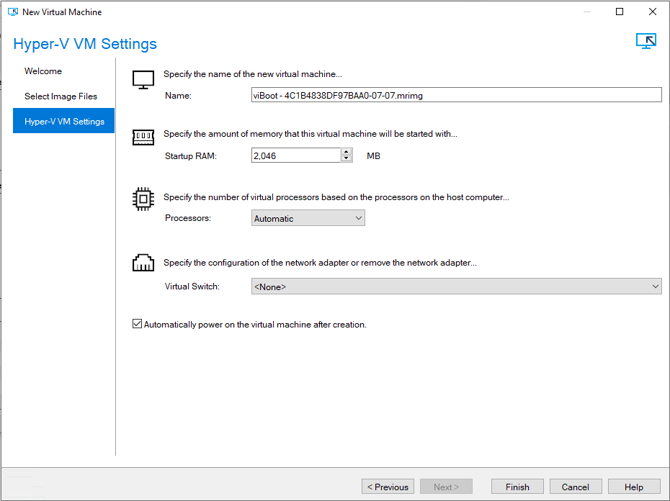
Select 'Finish' to create the virtual machine:
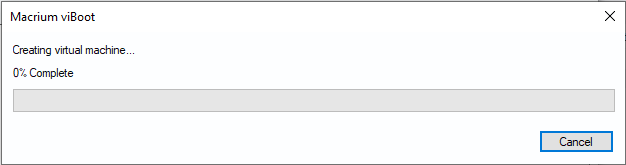
If 'Automatically power on the virtual machine after creation' was checked, the virtual machine will automatically start and boot into the operating system contained in the image file:
Test Restores
The third recommended way to validate that backups can be restored is to perform a test restore. This process is important to not only test that the image can be restored successfully, but also to familiarize yourself with the restore processes. This ensures that, in the event of a disaster, the system can be restored quickly, without having to learn the restore process during the disaster.
There are several different ways to restore an image, or restore data from an image, depending on the type of disaster that has occurred. Some of these restore processes will be more or less relevant for different systems, environments, and use cases. For example, if the primary purpose of the image is to restore a manufacturing system to a functional state following a disaster, the rescue media restores will likely be the most relevant. If the primary purpose of the image is to easily roll a system back following software, operating system, or driver updates, the restoring from within Windows processes may be the most relevant.
The different restore workflows are detailed below. Where possible, it is recommended that these are tested non-destructively in a fashion that is as close as possible to a real life disaster. This could range from testing a restore using the rescue media to a secondary blank disk and then attempting to boot the computer with this blank disk, to restoring the image to a replacement system that would be used in the event of a real-life disaster. If hardware and resources are a constraint, you may also test restoring to a virtual machine to learn the recovery workflows.
Rescue Media Restore
The Macrium Reflect rescue media is a bootable environment that contains a version of Macrium Reflect. This is a flexible recovery solution that can be used when Windows isn't booting correctly, in the event of errant software installation, failed Windows updates, or even to recover to a bare metal machine in the event of hardware failure.
Read more about restoring with the rescue media here.
Restoring Non-System Partitions within Windows
If the restore process does not require writing over existing system partitions, the restore can be entirely performed within Windows. These restores may include restoring non-system partitions to their original location or restoring system partitions to a new destination.
Read more about this type of restore here.
Restoring System Partitions within Windows
If, however, the restore requires in-use system partitions to be restored over, for example, restoring a system image back to the same location it was created, the restore cannot take place within Windows. As a result, the restore can be initiated within Windows, Macrium Reflect will then automatically create the bootable rescue environment, automatically restart into the recovery environment, perform the restore, and then boot back into the restored Windows operating system.
This type of restore is ideal when Windows is still bootable but may need resetting to an earlier point in time, e.g., a Windows update has caused application instability.
Read more about this type of restore here.
Recovering Individual Files and Folders
Macrium Reflect can also temporarily mount an image file as a virtual drive within Windows. This enables more granular file and folder recovery. This is ideal for situations where a limited number of important files and folders have become corrupted or been deleted. Browsing the image enables the files to be recovered without impacting other data on the system.
Read more about image browsing here.
Conclusion
Macrium has over 20 years of experience in disk imaging and recovery. That experience is reflected in the reliability and integrity of Macrium image backups. However, ensuring successful recovery requires more than creating a backup alone. Regular validation and restore testing confirm that images remain usable and that recovery processes work as expected. By validating backups and testing recovery workflows, you can be confident that your Macrium images will deliver reliable recovery when it matters most.