
Overview
This article contains the steps to troubleshoot errors while running a Macrium Reflect X installer. There are two primary ways that Macrium Reflect X installers can be downloaded:
- Downloading the Macrium Reflect X installer directly from the Macrium Account here.
- Using the Macrium Reflect Download Manager (ReflectDL.exe), a small application that will download the relevant installer for the computer where it is being run.
The vast majority of download errors that are experienced using the Macrium Reflect Download Manager are caused by firewall or internet connectivity issues. Firewalls need to allow outgoing port 80 access to updates.macrium.com and secure.macrium.com.
Below are troubleshooting steps for errors you may receive when running the installer once it has been downloaded.
- Check the Installer Digital Signature
- The Windows Installer Service Could Not Be Accessed
- The Cabinet File [WinPEFiles or CommonFiles] Required for this Installation is Corrupt
- The Feature You Are Trying To Use Is on a Network Resource That Is Unavailable
- Can’t Find the Installation Package Refxxxx.msi
- An Error Has Occurred - Code 0x01
- Service 'Macrium Reflect Image Mounting Service Could Not Be Installed
Check the Installer Digital Signature
The first troubleshooting step for installer errors, should be to check that the installer is genuine and has not experienced corruption.
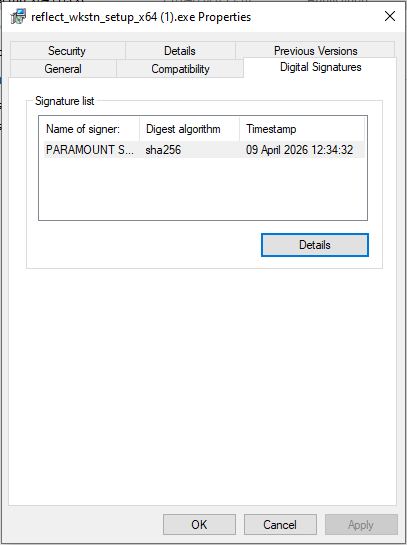
This can be done by checking the digital signature for the installer is valid. To do this, right-click on the installer, and select 'Properties'.
In the window that opens, select the 'Digital Signatures' tab, then select 'Details' on the entry in the 'Signature list' table:
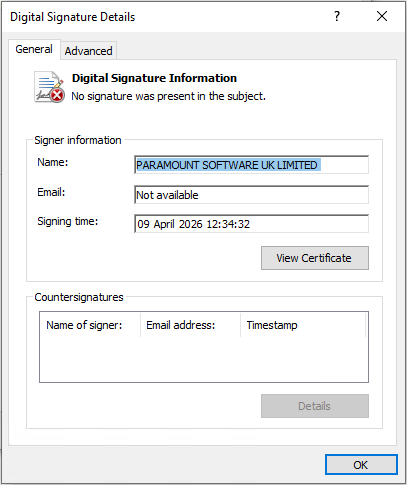
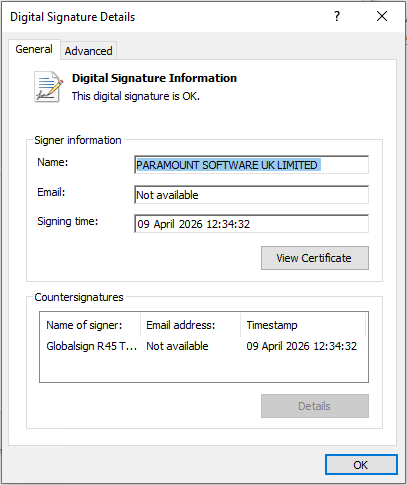
If the installer is corrupt, 'No signature was present in the subject' will be displayed, meaning that the signature is not valid, as shown on the left below. If the installer is not corrupt, 'This digital signature is OK' will be displayed, as shown on the right below:
The digital signature can also be used to verify that the installer was signed with Macrium's certificate as described in this article.
The Windows Installer Service Could Not Be Accessed
This error is either caused by an issue with the Windows installer component or security/antivirus software installed on the system. Where possible, we recommend whitelisting the installer in the security or antivirus software or temporarily pausing the software for the duration of the installation. If the error persists following this, use the Microsoft install check tool to confirm that the Windows installer components are functioning correctly.
The Cabinet File [WinPEFiles or CommonFiles] Required for this Installation is Corrupt
Unfortunately, this error indicates that the installer file is corrupt, which is often caused by antivirus/security software attempting to scan the file as it downloads. We recommend confirming this by checking the digital signature as described above.
We recommend attempting to download the installer again; if the error persists, temporarily disable any antivirus/security software and attempt the download again.
The Feature You Are Trying To Use Is on a Network Resource That Is Unavailable
This error indicates that the installer file for an existing installation cannot be located in C:\Windows\Installer. To resolve this error, download and launch the ReflectInstallDetails.exe tool here.
In the window that opens, select 'Delete' and then restart the system:
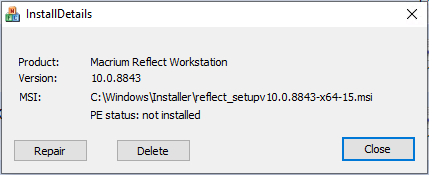
Once the system has restarted, attempt the operation again.
Can’t Find the Installation Package Refxxxx.msi
This error indicates that the installer file for an existing installation cannot be located in C:\Windows\Installer. To resolve this error, download and launch the ReflectInstallDetails.exe tool here.
In the window that opens, select 'Delete' and then restart the system:
Once the system has restarted, attempt the operation again.
An Error Has Occurred - Code 0x01
This error indicates that there is a problem accessing the Windows temporary folder.
From an elevated command prompt, run the following commands:
echo %temp%
echo %tmp%
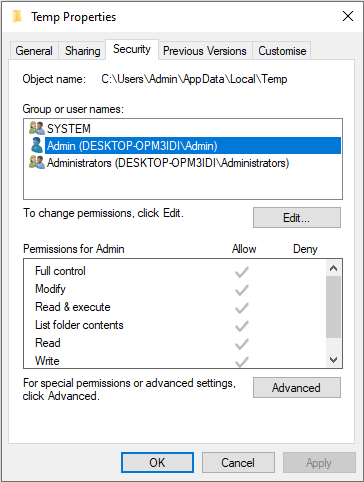
Make sure that the paths that are outputted exist on the system and that your user account has full read and write access to these paths. Alternatively, run the Macrium tool here that will attempt to create a file in the temporary folder and report any errors.
In the event that permissions for the folders, edit the permissions to ensure that your local account has full read and write access:
Service 'Macrium Reflect Image Mounting Service Could Not Be Installed
This error indicates that either:
- The user account that you are logged in as doesn't have the relevant permissions to install a new service.
- You have a previous installation that has not uninstalled properly.
First, check that your local account has the relevant permissions to install a new service and assign the relevant permissions if not.
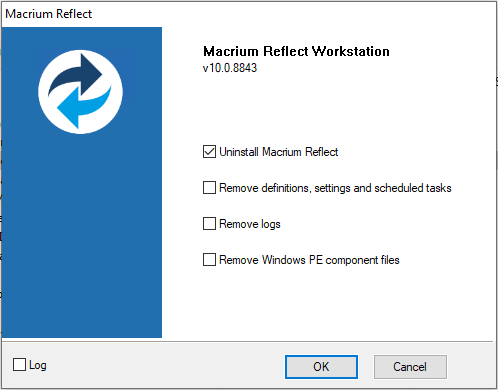
If the issue persists while the account has the relevant permissions, uninstall any currently installed version of Macrium Reflect. To ensure that any configuration is not lost during the uninstall, ensure that only 'Uninstall Macrium Reflect' is selected in the wizard:
Following this, from an elevated command prompt, run the command below:
sc stop macriumservice
Once this command has run successfully, run the command below:
sc delete macriumservice
Following this, attempt the installation again.
Contact Macrium Support
If the installer issues persist following these troubleshooting steps, we recommend creating an install log and then contacting the Macrium Support Team.
To do this, ensure that the 'Log' checkbox is selected on the first page of the installer wizard.
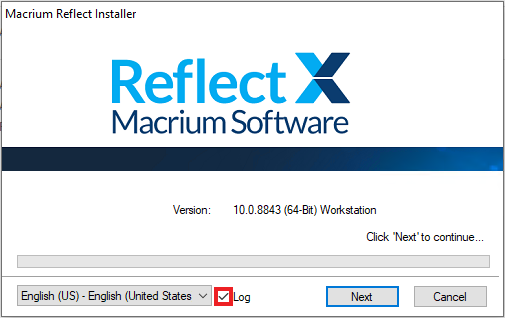
Once the installer has failed, you will find a 'Reflect_Install.log' file in the root of the C:\ drive. Please provide this log file when contacting the Support Team.