
- How does Macrium Reflect Image a Dynamic Disk?
- Considerations when Restoring Dynamic Volumes
- How to Restore a Dynamic Disk Image to the Original Location
- How to Restore a Bootable Dynamic Volume to an Uninitialized Disk
What are Dynamic Disks?
Dynamic disks are Microsoft's LVM implementation. It is analogous to RAID, enabling volumes to be extended over more than one disk, be mirrored over multiple disks, etc. Unlike RAID, it is implemented at a software level, meaning that no specific hardware is required.
As dynamic volumes support more than the four primary partitions that MBR partitioning schemes support, they are occasionally used for single-disk configurations, although this has become less common due to the four primary partition restriction not being present in GPT-initialized disks.
Non-dynamic disks are known as 'Basic' disks by Microsoft.
How Does Macrium Reflect Image a Dynamic Disk?
Dynamic disk systems can be imaged by all Macrium Reflect editions (Home, Workstation, and Server). The physical structure of the source dynamic volume is not stored in the image, and so dynamic volumes restructure to the physical layout of the target disk when restored.
Dynamic volumes are differentiated from standard partitions by the use of a contrasting color and the disk title on the 'Local Disks' tab of Macrium Reflect:

Considerations when Restoring Dynamic Volumes
There are some limitations that should be considered when restoring dynamic volume:
- Before the restore is started, the dynamic disk initialization and volume configuration must have been completed by an external tool such as Disk Management or Diskpart (both of which are included with all versions of Windows).
Dynamic disk initialization and Volume configuration are not possible in the rescue environment, even with Diskpart. This is a known limitation of Windows PE, as a result of not being able to persist the Dynamic disk state in the (possibly absent) host OS. If your target disk is not initialized, and you need to restore it from the rescue environment, then you must restore to a basic disk, and convert it back to dynamic once you have booted your (restored) Windows system. See the next section for more details.
- The restore is by volume. As part of the restore configuration, volumes to be restored must be "dragged" to already configured dynamic volumes on your target disk. It is not possible to reconfigure the target volume size, so the 'Restored partition properties' option is not available.
You can also drag and drop dynamic volumes to a basic MBR or GPT partitioned or an uninitialized target disk. This enables you to convert a dynamic disk back to basic. This is not possible with Microsoft tools.
How to Restore a Dynamic Disk Image to the Original Location
Most of the time, the dynamic disk image will be restored to the same disk where it was created.
In this case, performing a restore of a dynamic disk is similar to performing a restore of a basic disk, with the only difference being that partition properties cannot be modified during the restore. The restore is automatically configured when the image is selected for restore:
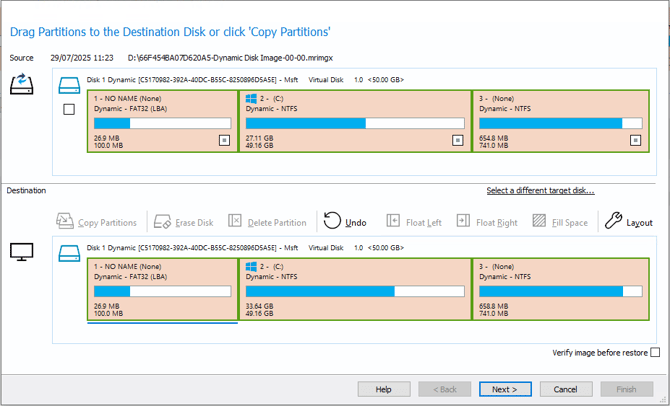
Select 'Next' to proceed with the restore.
How to Restore a Dynamic Disk Image to an Uninitialized Disk
Within Windows
As noted earlier, when restoring a dynamic volume, the destination must already be initialized and the dynamic volume configuration must be completed in advanced, otherwise the dynamic volume will be restored as a basic volume.
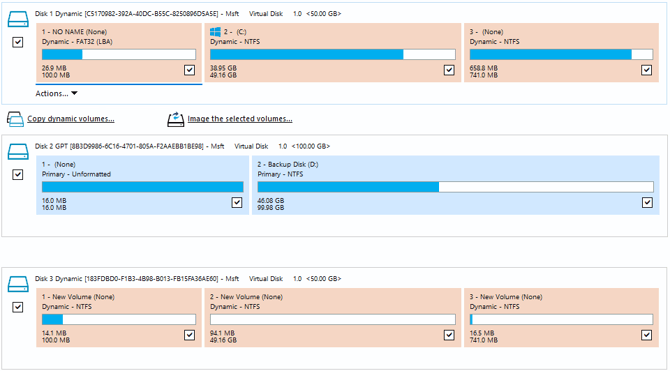
As a result, when restoring dynamic volumes to an uninitalized disk within Windows, the destination disk must be prepared for the restore with empty volumes. In the example below, 'Disk 3 Dynamic' has been prepared with blank volumes that are similar in size to the volumes on 'Disk 1 Dyanmic' which were backed up:
On the 'Drag Partitions to the Destination Disk or click 'Copy Partitions'' page of the restore wizard, drag the partitions from the image to the prepared volumes on the destination disk:
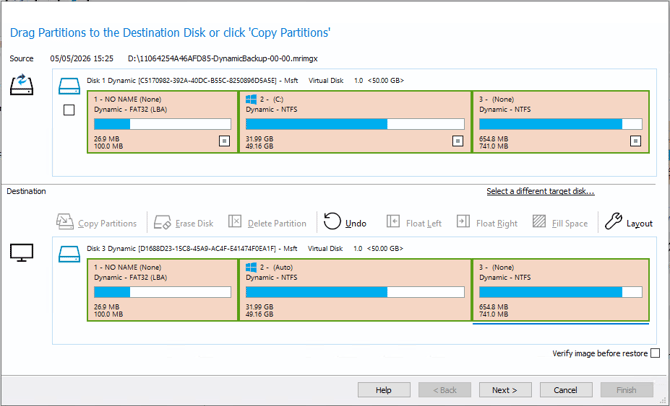
Once the volumes have been dragged onto the destination volumes, select 'Next' and then 'Finish'.
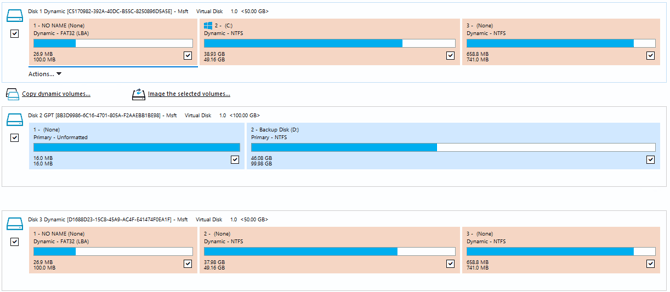
Once the restore has completed, the restored volumes will remain dynamic:
Using the Rescue Media
If the system is in a non-bootable state, then the restore must be performed from within the rescue media. This complicates the recovery process as it is not possible to create a dynamic disk from within the rescue media.
The dynamic disk will be restored as an MBR initialized disk, limiting the number of partitions the disk can hold to 4. Therefore, the recommended method is to restore up to the first 4 partitions from within the rescue environment, ensuring the C: partition and the system reserved partition (if used) are restored, as shown in the example below:
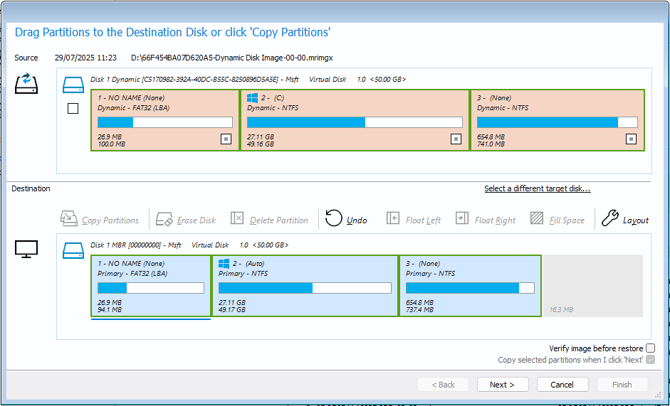
This will ensure that the system is in a bootable state. Once the restore has been completed, boot into the restored Windows operating system, then convert the basic disk back to a dynamic disk:
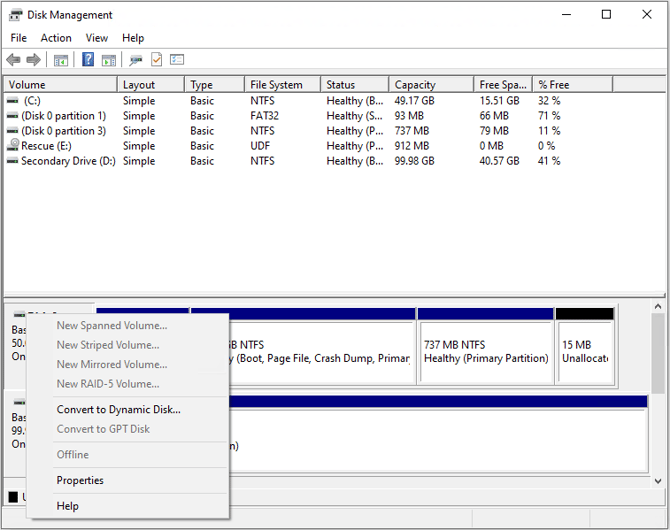
If you experience any errors booting the restored basic disk, we recommend running 'Fix Windows Boot Problems' as described here.
Following this, if all the partitions from the source image have been restored, then the restore is completed. If there are partitions that still need to be restored from the source image, use Windows Disk Manager or Diskpart to create empty volumes that match the size of the remaining partitions in the image. The additional partitions in the image can then be restored to the blank volumes.