
- Overview
- Why Is Macrium Reflect the Only Application Reporting Bad Sectors?
- Identifiying a Disk with Bad Sectors
- CHKDSK
- Imaging a Disk with Bad Sectors
Overview
Disks are designed to perform thousands of read and write operations per second in environments subject to varying temperatures, vibration, and general wear. As a result, low-level data errors are expected over time. Modern drives are built to handle these through mechanisms such as error correction codes (ECC), automatic retries, and sector remapping, all of which work to minimise the likelihood of uncorrectable errors.
When a sector develops more errors than can be corrected, the drive reports a read or write failure to the operating system. These are commonly referred to as bad sectors.
Bad sectors indicate that data in a given location can no longer be reliably read or written. In many cases, the drive firmware will attempt to remap these sectors to spare areas transparently. However, the presence of bad sectors, especially if they are increasing over time, is often a sign of underlying media degradation, and may indicate that the disk is approaching failure and should be replaced.
Why Is Macrium Reflect the Only Application Reporting Bad Sectors?
As a backup and recovery solution, Macrium Reflect is responsible for reading parts of the disk that are not frequently accessed during normal system operation. As a result, Macrium Reflect is more likely to attempt to read from these bad sectors.
Although you may not see the bad sectors during normal system operation, the presence of these bad sectors is an indication of underlying hardware problems.
Identifiying a Disk with Bad Sectors
If a disk has bad sectors, you may see error messages in backup logs similar to the example below:
Backup aborted! Unable to read from disk - Error Code 23 - Data error (cyclic redundancy check).
There are several ways to confirm that the disk does in fact have bad sectors:
CHKDSK
CHKDSK is a command-line utility that can be used to scan disks for logical and physical errors, as well as attempt to repair errors and recover data from bad sectors where possible.
To run CHKDSK, open an elevated command prompt and run the following command:
CHKDSK X: /r
Replace X: with the disk that has suspected bad sectors.
The '/r' switch will attempt to fix errors on the disk, locate bad sectors and recover readable information, and analyze physical disk errors. The '/r' switch requires the disk to be locked, meaning that the system may need to be restarted for CHKDSK to run.
Windows Event Viewer
Windows Event Viewer is Windows primary tool for logging system, security, and application events. As a result, disk errors will often be logged in event viewer.
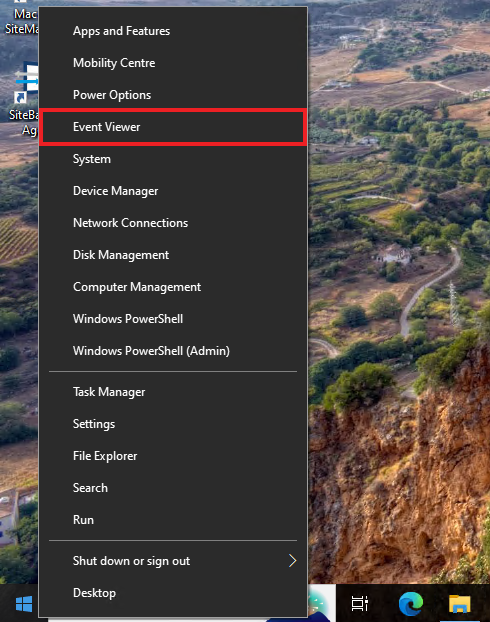
To view these events, right-click on the Windows task bar icon and select 'Event Viewer':
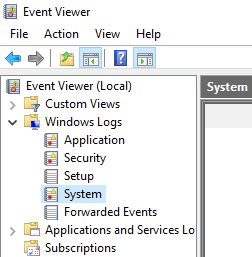
In Windows Event Viewer, expand 'Windows Logs' and then select 'System':
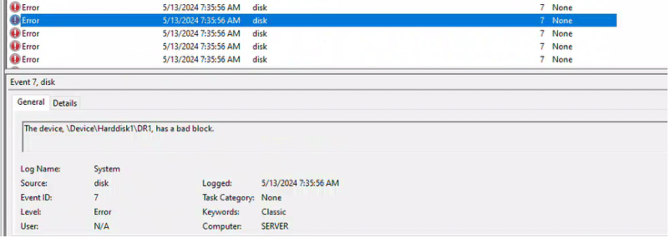
These disk errors will often be logged with 'Event ID 7' meaning bad block. However, other events may also be logged that indicate a failing disk, like 'Event ID 55' meaning 'the file system structure on the disk is corrupt and unusable. Please run the chkdsk utility on the volume'.
Disk S.M.A.R.T Tools
The majority of modern HDDs and SSDs also include Self-Monitoring, Analysis, and Reporting Technology, or S.M.A.R.T, which provides diagnostic information reported directly by the drive firmware. S.M.A.R.T attributes like 'Reallocated Sector Count', 'Current Pending Sector Count', and 'Uncorrectable Sector Count' can indicate the presence of bad sectors on a disk.
For more information on using S.M.A.R.T to confirm the presence of bad sectors on a disk, we recommend consulting the disk manufacturer's documentation.
Imaging a Disk with Bad Sectors
Since bad sectors are an indication of underlying hardware errors, and may indicate that the disk is close to failing, we recommend imaging the disk to ensure that data loss does not occur in the event of failure.
Imaging Following CHKDSK
If the disk image is failing due to the bad sectors, we recommend running CHKDSK repeatedly as described here and attempting to create the image after each CHKDSK run. This will ensure that all file system clusters have been allocated to good sectors and may enable the image to complete successfully.
Ignore Bad Sectors
If the error persists following multiple CHKDSK runs, Macrium Reflect can be configured to ignore these bad sectors when creating the disk image.
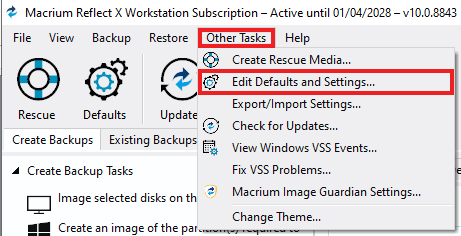
To do this, select the 'Other Tasks' menu, then select 'Edit Defaults and Settings...':
In the window that opens, selec the 'Advanced Settings' tab, then select 'Advanced Error Handling'.
Selecting 'Ignore bad sectors during image or clone' will enable Macrium Reflect to continue the image when a bad sector is found, instead of failing the backup.
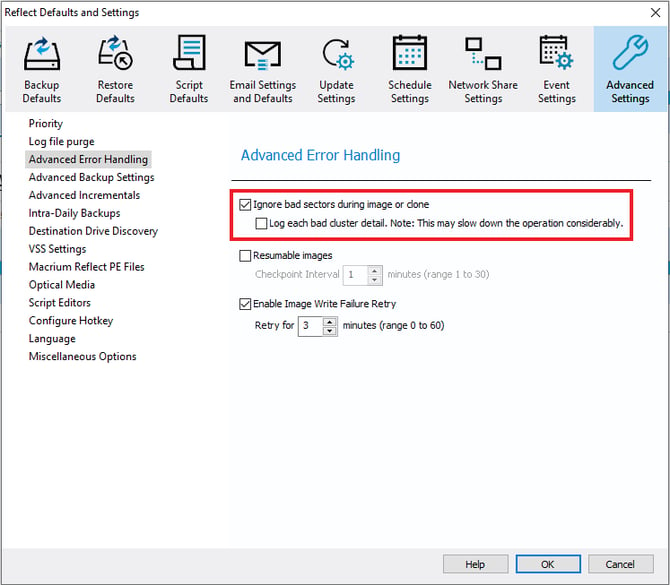
Optionally, 'Log each bad cluster detail' can be selected to report each bad sector in the image log file similar to the example below:
Read Error: Bad sector found in cluster 2353222
Read Error: Bad sector found in cluster 2353223