
- Overview
- Checking the Digital Signature
Overview
In high security environments, it may be necessary to confirm by digital signature that the software you are installing is genuine. This article contains the steps to check the signature of a Macrium Reflect X installer to ensure that it is genuine and created by our build process. You can read more about code signing in this Microsoft documentation.
Checking the Digital Signature
To check the digital signature of an installer, navigate to the folder where the installer is located and right-click on the installer, then select 'Properties'. In the window that opens, select the 'Digital Signatures' tab:
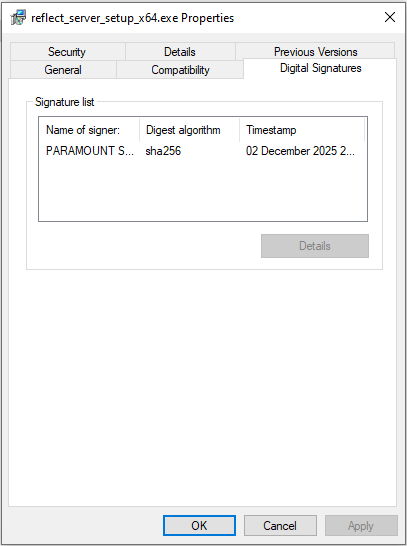
Select the signature shown in the table, then select 'Details'.
In the window that opens, select 'View Certificate':
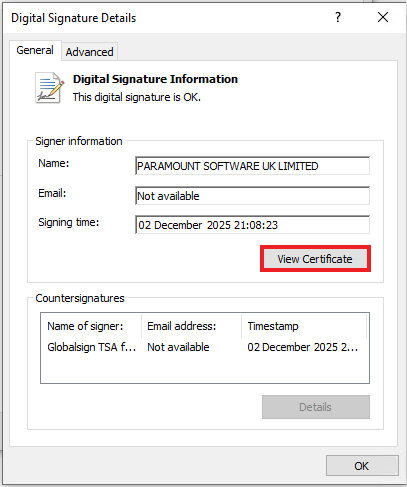
Finally, in the window that opens select the 'Details' tab and then select 'Thumbprint':
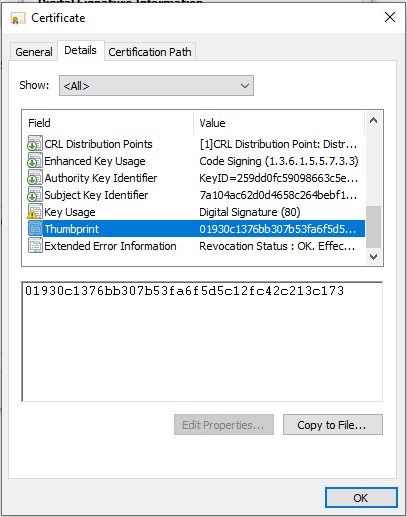
The thumbprint should match the thumbprint below:
| Start | End | Hash Type | Thumbprint |
| 18/12/2024 | 12/03/2028 | SHA256 | 01930c1376bb307b53fa6f5d5c12fc42c213c173 |