
- Overview
- Restoring Emails with Granular Recovery
Overview
In Macrium Reflect Server Plus, granular recovery can be used to restore individual emails from a backup of Microsoft Exchange. This is useful if a backup contains some vital emails or attachments, that need to be recovered without restoring the whole Microsoft Exchange database to an earlier point in time. This enables emails, appointments, contacts, journal entries, notes, and tasks to be restored.
Restoring Emails with Granular Recovery
For Granular Recovery to function on Exchange 2010 or earlier, Microsoft Exchange MAPI and CDO must be installed on the server. These are present by default on Microsoft Exchange Server 2003. For Exchange 2007 or 2010, they can be downloaded from the following link:
https://updates.macrium.com/Exchange/ExchangeMapiCdo.zip
To restore an email using granular recovery, the edition of Microsoft Exchange running on the target server must be the same as the original server. An email backed up on a server running Exchange Server 2013, for example, can be restored onto other servers running Exchange 2013, but not to a server running Exchange 2016.
Note: A mailbox needs to exist on the target server, with the same name as the original mailbox. The user that Macrium Reflect is running as must also have full permissions for the destination mailbox.
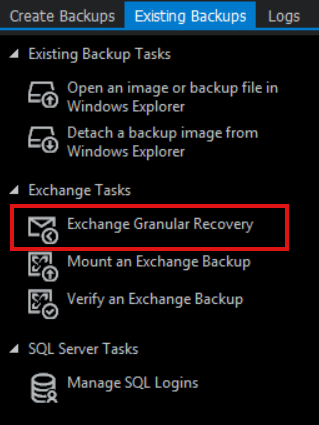
To perform a granular recovery of an email, select the 'Existing Backups' tab in Macrium Reflect Server Plus, the select 'Exchange Granular Recovery' under the 'Exchange Tasks' tab:
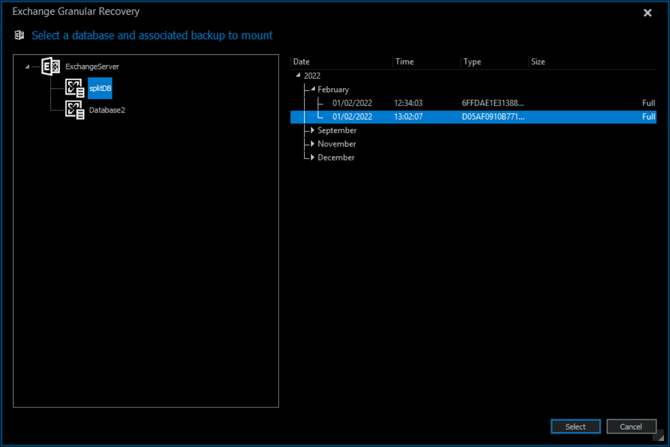
This will open the 'Exchange Granular Recovery' wizard. In this window, select the required database and backup that the email will be recovered from, then click 'Select':
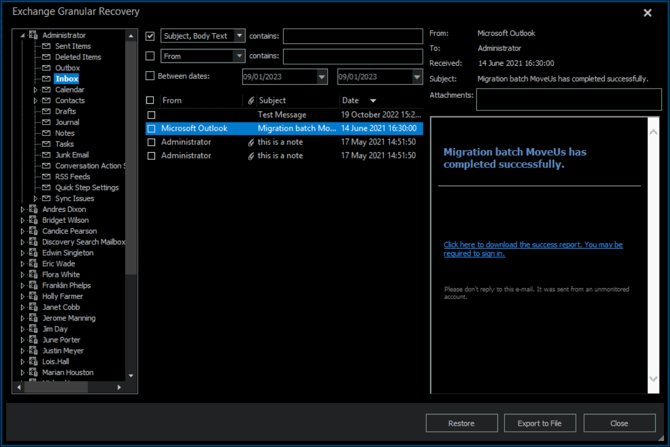
In the window that opens, select a folder to view the items it contains:
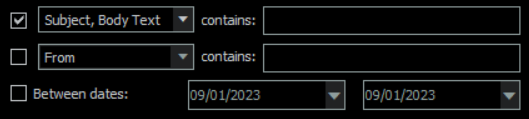
The filter options can be used to make finding specific items easier:
Use the checkboxes next to each item to select them for granular recovery, then select 'Restore' to recover the selected items.