
- Microsoft Exchange 2007 or Later
Microsoft Exchange 2007 or Later
-
Open the Microsoft Exchange Management Shell as an Administrator.
- Run the following commands:
Add-MailboxPermission -identity MAILBOX -user USERNAME -AccessRights FullAccess -InheritanceType All
Add-ADPermission -user USERNAME -ExtendedRights Send-As MAILBOX
Add-ADPermission -user USERNAME -ExtendedRights Receive-As MAILBOX'USERNAME' and 'MAILBOX' should be substituted with the relevant names.
Microsoft Exchange 2003
-
Click the Windows Start Menu.
- Navigate to 'Administrative Tools' and then 'Active Directory Users and Computers':
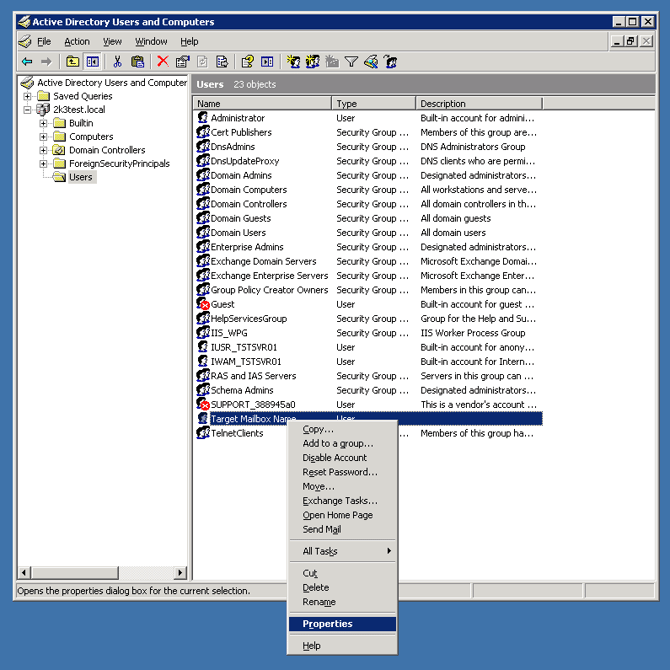
- In the window that opens, select the 'Exchange Advanced' tab, then select 'Mailbox Rights':
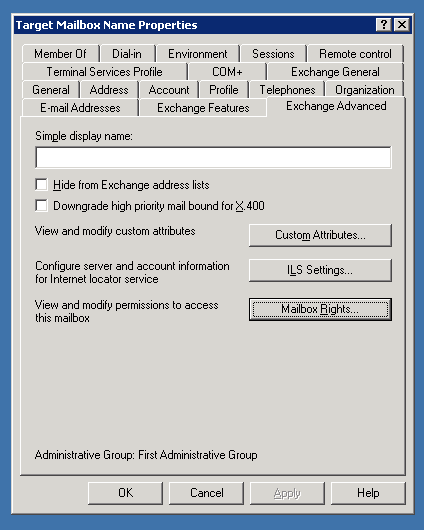
- In the 'Permissions' dialog, click 'Advanced', select your user name in the list, and click 'Edit'.
- If your username does not appear in the list, click 'Add', then use the dialog to select your username. Then select 'OK':
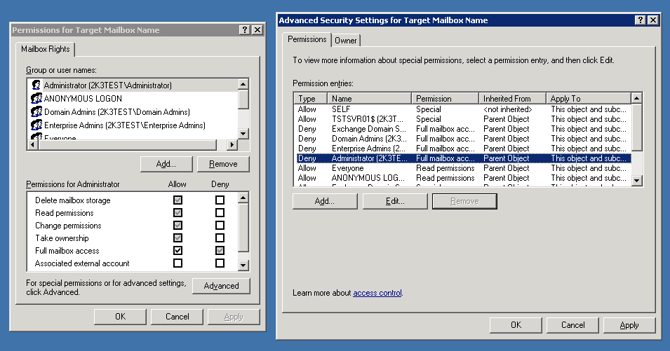
- Finally, check the 'Full mailbox access' permission under the 'Allow' column.