
- Password
- Billing
- Support
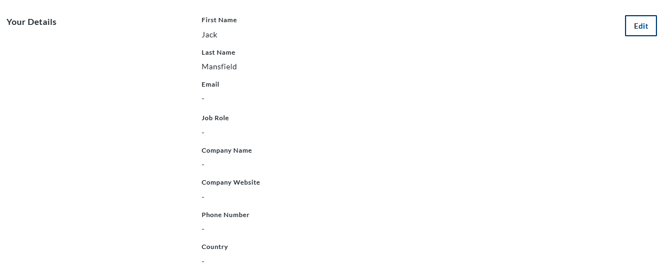
Your Details
This section of the 'Profile & Settings' shows your details. Select 'Edit' to change the information here.
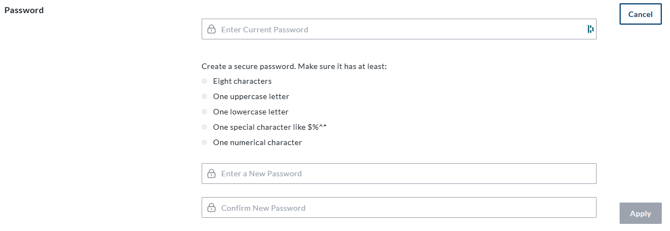
Password
Select 'Edit' to change the password for your Macrium Account. This password has the same password requirements as the initial password that was used to create the account.
Billing
The 'Billing' section shows the billing email address associated with the account.

Support
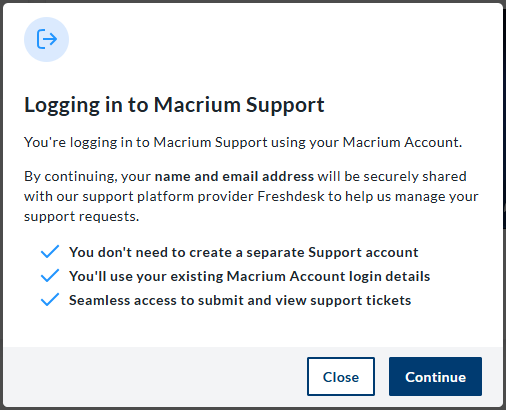
Your unique user support number is shown here. Select 'Submit A Ticket' to open the Macrium Support Helpdesk in a new tab:

The first time this is selected, you will be prompted to log in to the Macrium Support Helpdesk using your Macrium Account details:
Registration Code
Your registration code is entered when installing product trials and is paired with your email address. This code is autofilled when using trial installers downloaded from the Macrium Account.

Communication Preferences
Select whether to receive news and offers via email.

Two-Factor Authentication
When two-factor authentication is enabled, you will be emailed a code that must be entered into the Macrium Account before logging in.

Delete Account
Selecting this option will permanently delete your Macrium Account, including any personal data and settings that are associated with the account.
Note: Your license keys will not be deleted, and you will still be able to use any purchased license keys. This will not affect any in-progress trials.

You will still be able to use any purchased license keys, but will need to create a new Macrium Account to manage