- Overview
Overview
The 'Billing' section shows the subscriptions and order history associated with your primary account.
Subscriptions
The 'Subscriptions' table lets your view and manage all of your subscriptions, whether they are still active or have elapsed. Subscriptions that have elapsed will have 'Action Required' under the 'Status' column, while active subscriptions are shown as 'Active':
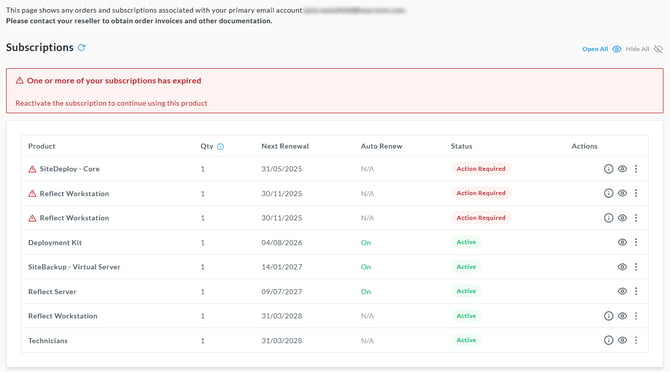
Selecting the eye icon on one of the rows in the table will display additional information about the license(s) that are associated with that subscription:

Managing Subscriptions
For licenses that were purchased directly from Macrium Software, selecting the 'More Actions' (⋯) menu will display options to:
| Manage Subscription | This option will open a new tab that enables the subscription to be managed, including enabling/disabling automatic renewals, updating payment information, and viewing last order details. |
| Update Payment Details | This will open a new tab where payment information can be managed directly, including the payment type and payment details. |

For licenses that have been purchased through a Macrium Channel Partner, subscription management and payment detail management are handled directly through the Channel Partner.
Order History
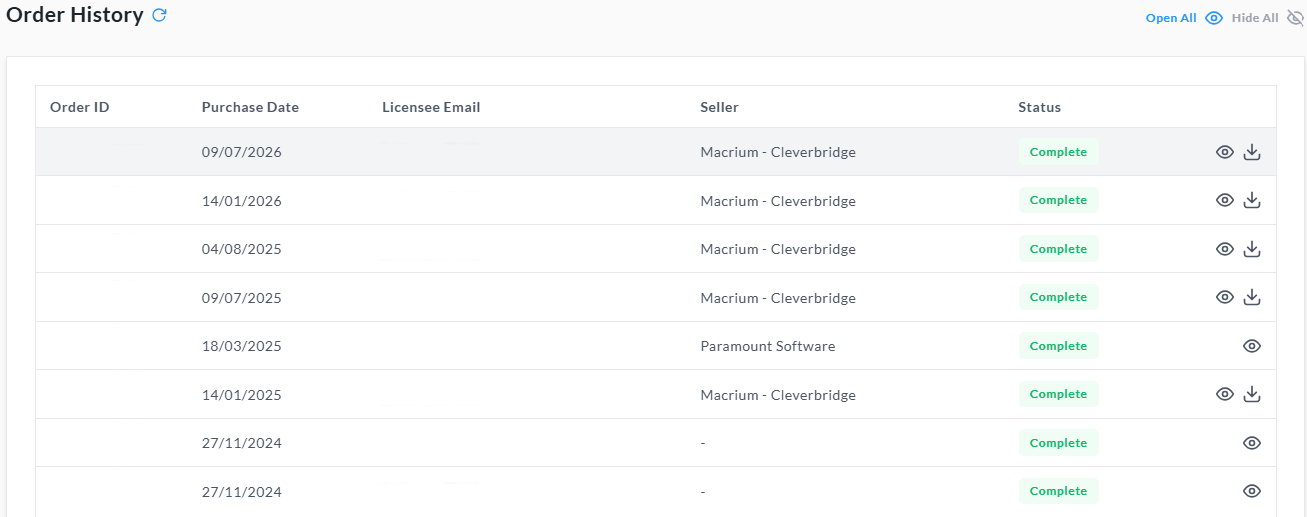
The 'Order History' table shows additional information about previous orders that are associated with the account, including the order ID, purchase date, the licensee email, the seller ('Macrium - Cleverbridge' for orders transacted directly with Macrium, and a reseller name for purchases made via a Macrium Channel Partner), the status (Complete, Refunded, or Partially Refunded).
Additionally, the eye icon can be used to view more information about the licenses that are associated with the order, and the download icon can be used to download the invoice for the order.