
- Overview
Overview
This article contains the steps to get started with a Macrium Account from first login, including viewing licenses that have already been purchased and starting product trials. If you have not yet created a Macrium Account, see this article for more information.
First Login
On first login to an account with no paid products, a welcome message will be displayed. This message has the URC that can be used to start trials of Macrium products. By default, this will be prepopulated in the installer for trials that are downloaded from the Macrium Account. Read more about starting product trials here.

Viewing Purhcased Licenses
If you have already purchased a license, it will be displayed under the 'Licenses' page of the Macrium Account:

No Licenses Displayed
If there are no licenses associated with the email address that was used to create the Macrium Account, the following message will be displayed:
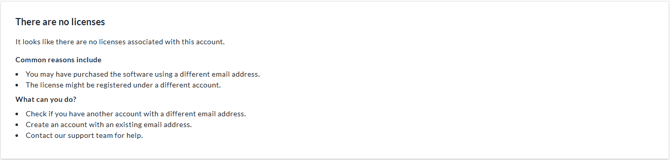
There are several potential reasons for this:
-
The purchase was made using a different email address than the one used to register/sign in (e.g. purchase with email A, create an account with email B).
-
The purchase may have been made via a Macrium channel partner, and the licence ownership details differ from the email used for login.
To begin viewing the licenses in the Macrium Account, we recommend checking that the email address used at checkout/purchase was also used to create the Macrium Account. If you are still unable to view your licenses keys in the Macrium Account, please contact our Support Team here.
Starting Product Trials
If you haven't purchased a Macrium product, the Macrium Account can instead be used as a single hub to start product trials for any Macrium solution, access product documentation, and view release notes.
Trials of Macrium solutions can be downloaded on the 'Overview' and 'Downloads' pages of the Macrium Account. On these pages, a product card will be displayed for each solution that is available to trial:
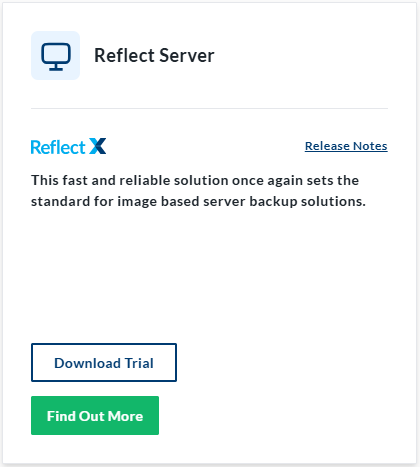
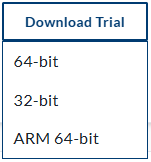
Selecting 'Download Trial' may open an additional dropdown box if there is more than one option for the installer that can be downloaded:
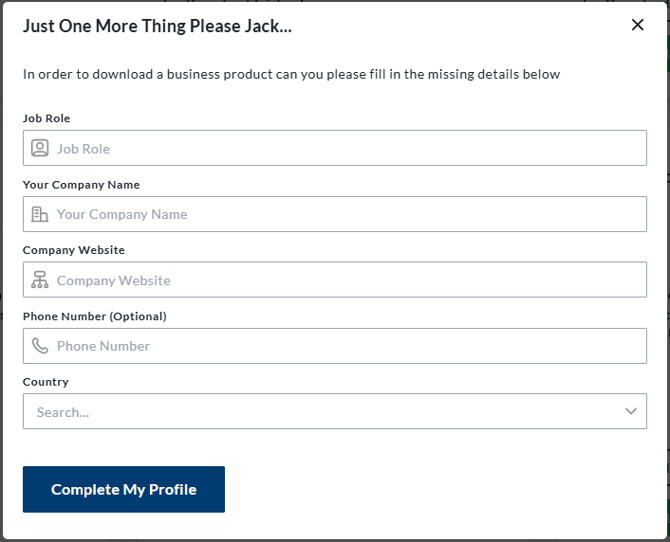
If you are downloading a business solution, you will be prompted for some additional information:
Once the installer has been downloaded, run it on the computer where the Macrium solution will be installed. The steps during the installer will vary depending on the solution that is being installed. You can read more about these steps in the Macrium Reflect X, Macrium SiteManager Platform, and Macrium Reflect LTSC knowledge bases.