
- Overview
- Resetting License Activation Counts
- Adding a Friendly Name for Licenses
- Renew existing subscriptions or Support and Maintenance
- Purchase directly from Macrium
Overview
The 'Licenses' page in the Macrium Account provides a single pane of glass view of all of the licenses that are associated with the Macrium Account's email address. From this page, licenses can be managed, including activating the licenses offline, resetting the installation count for licenses that are still activated on systems that are no longer functional, friendly names for licenses can be created to make license management easier, and upgrades and renrewals can be iniatied.
Viewing Licenses
The 'Licenses' page is broken down into 'License Cards'. Each product and license type will be displayed on it's own license card. Additionally, licenses for the same product and of the same product type, will be given their own license card if they have different subscription or support expiry dates:

The license card is made up of the following sections:
| Section | Description |
| Product Name | The Macrium product that the license belongs to. |
| License Keys | This section shows the number of license keys that are available for this product, and the number of licenses that are currently activated. |
| Subscription and Support Status |
If an annual plan license is being used, this will show the renewal date and status of the annual plan. If a one-time purchase license is being used, this will show the support status and renewal date. |
| License Key | The license key itself can be used to license the product shown in the card. |
| License Tags | These tags contain additional metadata (ir user specified friendly names) about the license (e.g., installed, number of seats, etc). |
| License Actions Menu | Additional actions can be performed for the license, including (where available) activating the license offline, resetting the license installation count, and setting a friendly name for the license. |
Managing Licenses
Resetting License Activation Counts
Customers can reset an active licence from within the Macrium Account when they need to move it to a different computer but no longer have access to the original machine to deactivate it (e.g., hardware failure, OS reinstallation, PC replacement).
Resetting removes the licence assignment from the currently associated computer, freeing it up to be activated on another machine.
Note: resetting the installation count is only available for active annual plan licenses, and they can only be reset three times through the Macrium Account. If you require the activation count to be reset for a one-time purchase license or a license that has reached its reset limit, please contact our Support Team here.
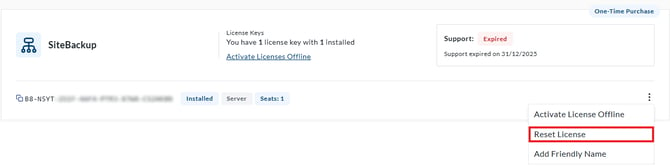
To reset the license activation count, select the 'License Actions Menu' (⋯) next to the relevant license and then select the 'Reset License':
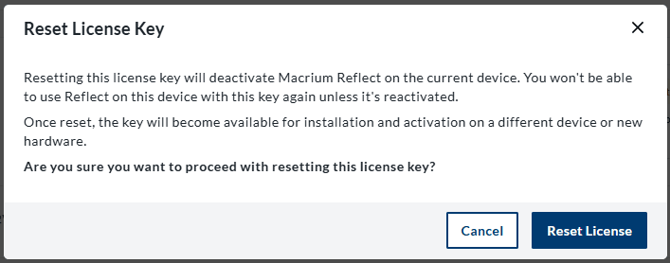
Finally, review the warning that resetting will deactivate Reflect on the device where it is currently activated, then select 'Reset License' to proceed (or 'Cancel' to abort):
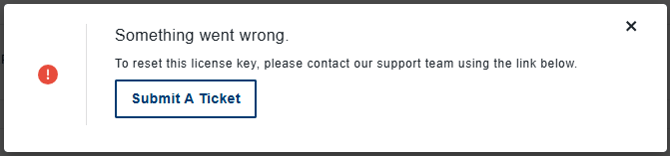
If the license does not support being reset through the Macrium Account, or we are unable to reset the activation count, the following message will be displayed:
Adding a Friendly Name for Licenses
A friendly name is an optional label you can add to a licence key to help you identify what it’s used for (for example, a device name or license owner).
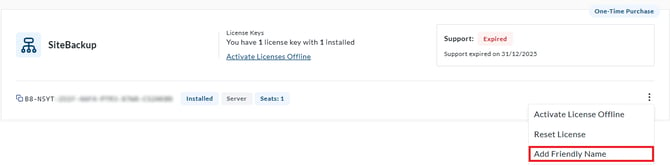
To add a friendly name for a license, select the 'License Actions Menu' (⋯) next to the relevant license and then select the 'Add Friendly Name':
In the window that opens, enter the chosen friendly name, then select 'Save Friendly Name':
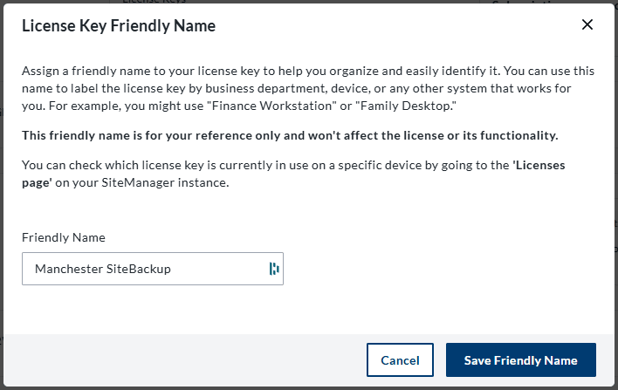
The friendly name will then be displayed next to the license key:

Once a friendly name has been added, selecting the 'License Actions Menu' (⋯) will instead prompt to 'Edit Friendly Name':
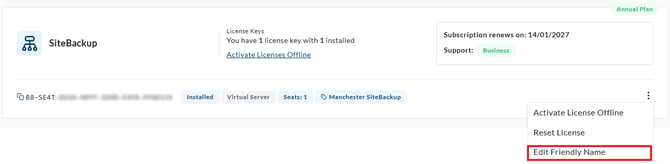
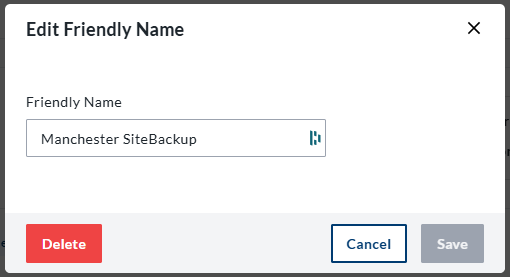
The friendly name can then be edited or deleted:
Offline Activating Licenses
Offline activating a license enables it to be used on a computer that does not have an internet connection. The steps required to offline activate a license will vary depending on the solution that is being offline activated.
Note: Macrium Reflect X Home, Macrium Technician's License, and the Macrium Deployment Kit do not support offline activation.
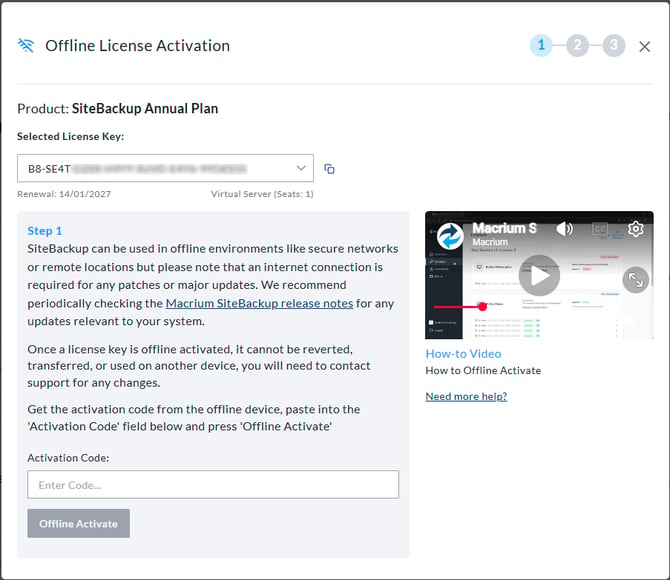
Selecting 'Activate License Offline' will open the offline activation wizard:
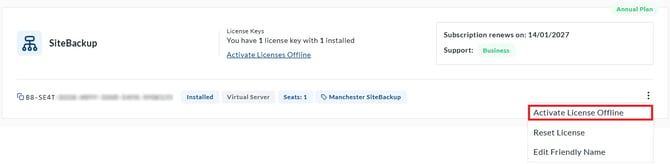
In the window that opens more information will be displayed with the specific steps required to perform the offline activation:
- Select Add Existing Keys from the header

- The Logging in to Macrium Support window will be displayed. Select Continue to access Macrium Support using your existing Macrium Account login details
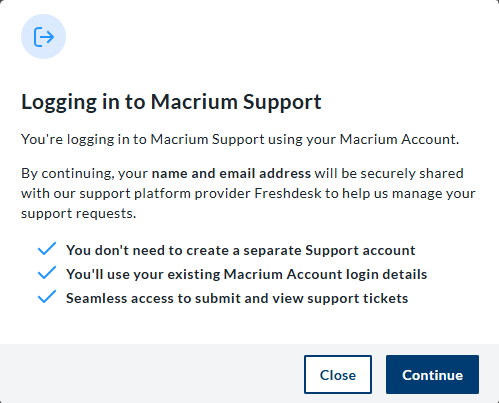
- You will be redirected to the Support ticket creation page
- Complete and submit the Support ticket, including details of the license keys that you want to add
- The Macrium Support team will review the request and add eligible license keys to your account.
“If you have existing or older license keys you'd like to manage through your Macrium Account, you can easily add them by clicking the ‘Add Existing Keys’ button. This action will let you create a Support ticket and our dedicated Support team will take it from there.”
- Select 'Upgrades & Renewals' from the header.
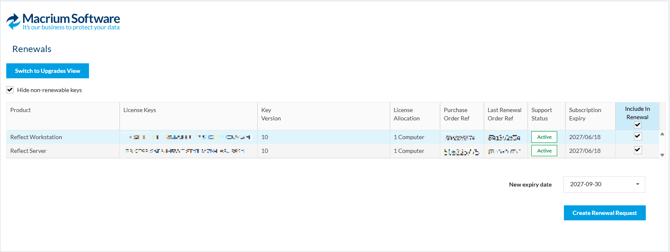
- The 'Renewals' page will display licenses that are eligible for renewal, together with their subscription, support, or maintenance expiry dates
- Select the licenses that you want to include in the renewal request
- Where applicable, select the required renewal duration
- You can enable the option to hide license keys that are not eligible for renewal
- Create the renewal request
- The 'Renewal Request ID'
- The date to which your support will be renewed
- The products and SKUs included in the request
- The quantity and description of each renewal item
- The relevant license keys and their allocations
- Copy the Renewal Request ID from the renewal summary
- Provide the ID to your reseller so that they can process the renewal
- If required, select 'View Reseller List' to find a Macrium reseller
- Create a Quote - Generates a quote for the selected renewal items
- Renew Now - Takes you to the checkout so that you can purchase the renewal immediately
- Select Upgrades & Renewals from the header
- Switch to the Upgrades view
- Review the available upgrade offer cards
- Select the appropriate option to learn more about or purchase an upgrade
- Trade In Now
- Example Prices
- Find Out More
- How To Upgrade
- An option to begin the upgrade directly in Site Manager