
- Overview
Overview
The Macrium Account provides a single place to download product installers, view and manage Macrium product licenses, and billing.
This article covers how to register and log in starting directly in the Macrium Account here.
Register using email
If you don't already have a Macrium Account, on the Macrium Account sign-in page, select the 'Register' option:
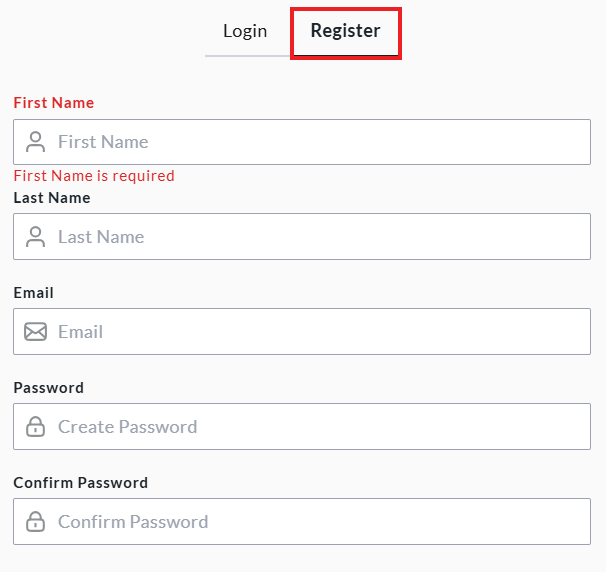
You will then be prompted to enter details that will be used to create the account.
Note: The email address that your license keys are associated with should be used to create the Macrium Account. More information about this can be found here.
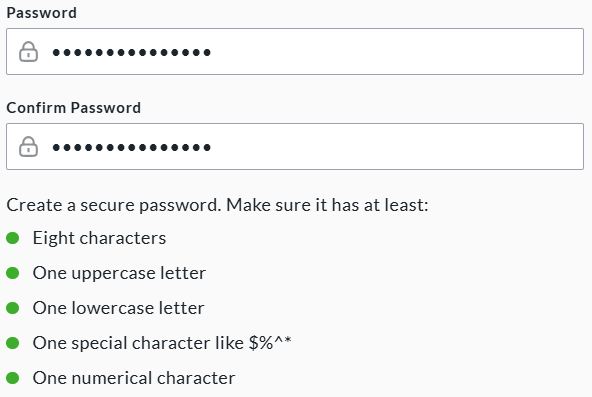
The following requirements must be met when creating the password:
-
Passwords must match.
-
To help ensure password security, the password must have at least eight characters, one uppercase letter, one lowercase letter, one special character, and one numerical character.
At the bottom of the 'Register' page, 2FA can optionally be enabled, and preferences can be set to receive news and offers about Macrium products by email.
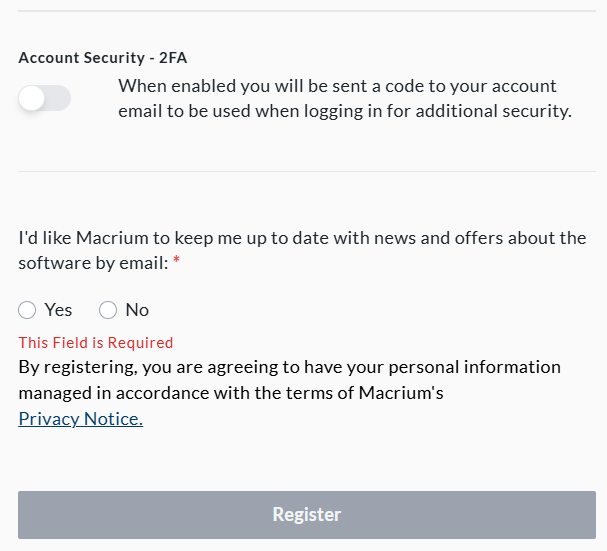
Once all fields have been completed, the 'Register' button will become active:
After selecting 'Register', you will be prompted to verify the Macrium Account by email as described here.
Register using SSO
If you don't already have a Macrium Account, on the Macrium Account sign-in page, select the 'Register' option:
At the bottom of the page, select either 'Sign up with Google' or 'Sign up with Microsoft':
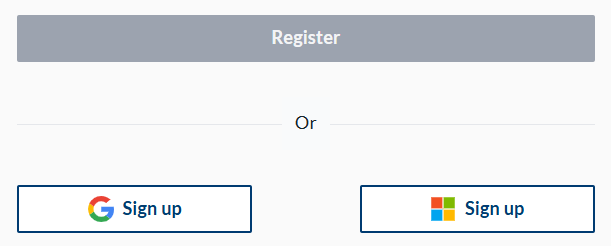
In the window that opens, you will be prompted to complete the SSO with the selected provider:
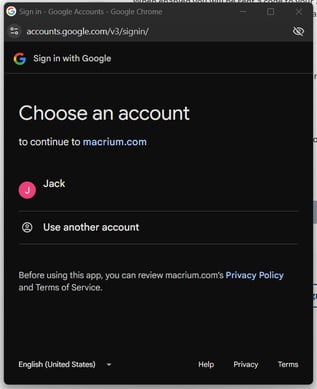
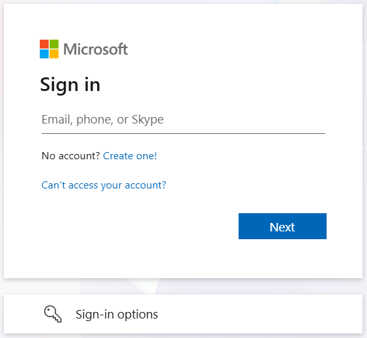
Once the SSO has been completed with the provider, you will be redirected to the sign up page where the details can be changed if necesary:
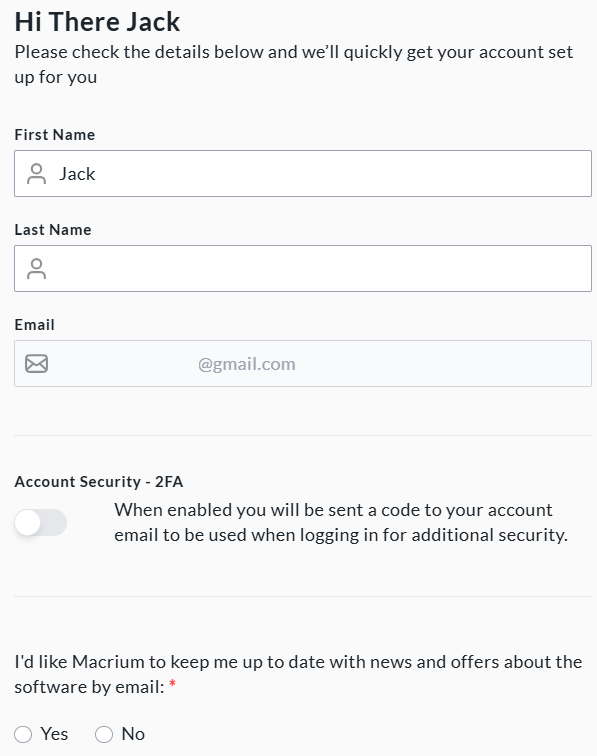
At the bottom of the 'Register' page, 2FA can optionally be enabled, and preferences can be set to receive news and offers about Macrium products by email.
Once all fields have been completed, the 'Register' button will become active:
After selecting 'Register' you will be prompted to verify the Macrium Account by email as described here.
Activating your Account
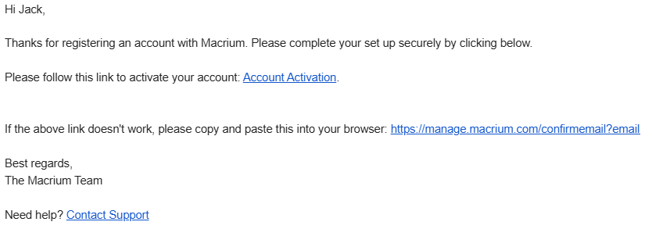
After selecting 'Register' you will be prompted to verify the Macrium Account by email:
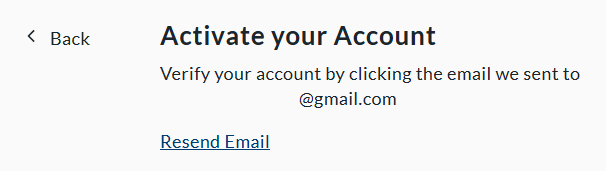
In the activation email, selecting the 'Account Activation' link. If the link does not correctly open in the browser, a URL is also provided that can be manually pasted into the browser to complete the activation:
The following message will be displayed once the activation has been completed:

Logging in
Log in with email
To log in to an existing Macrium Account with an email address, select 'Login' (this is selected by default when accessing the Macrium Account). Then enter the email address and password for the Macrium Account and select 'Login':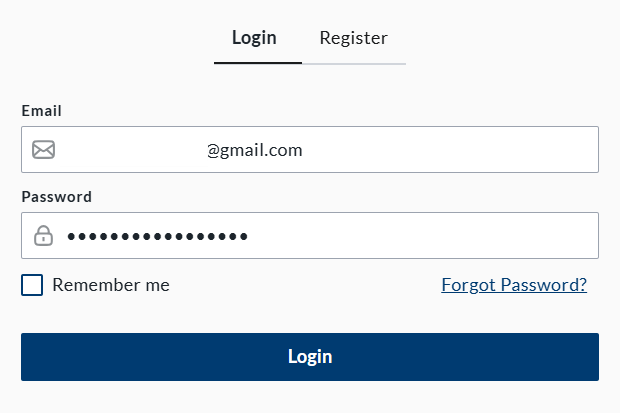
Optionally, select 'Remember me' to automatically sign in when returning to the Macrium Account on this device.
Log in with SSO
To sign in with SSO, select 'Sign in' with the provider that was used to create the account:
